
Auto-Detect Sensitivity — Reduce False Swing Captures
MotionEdge watches your body in the camera feed and triggers recording on its own when you swing. The Sensitivity slider (1–100) is the single knob that controls how easily it triggers. If you're getting missed swings, or your waggle / practice swing is firing the camera, this is the first thing to adjust.
Where to find it
Camera → Capture Camera → Capture Settings → Camera Detection → Sensitivity (active only when capture mode is Auto-Detect).
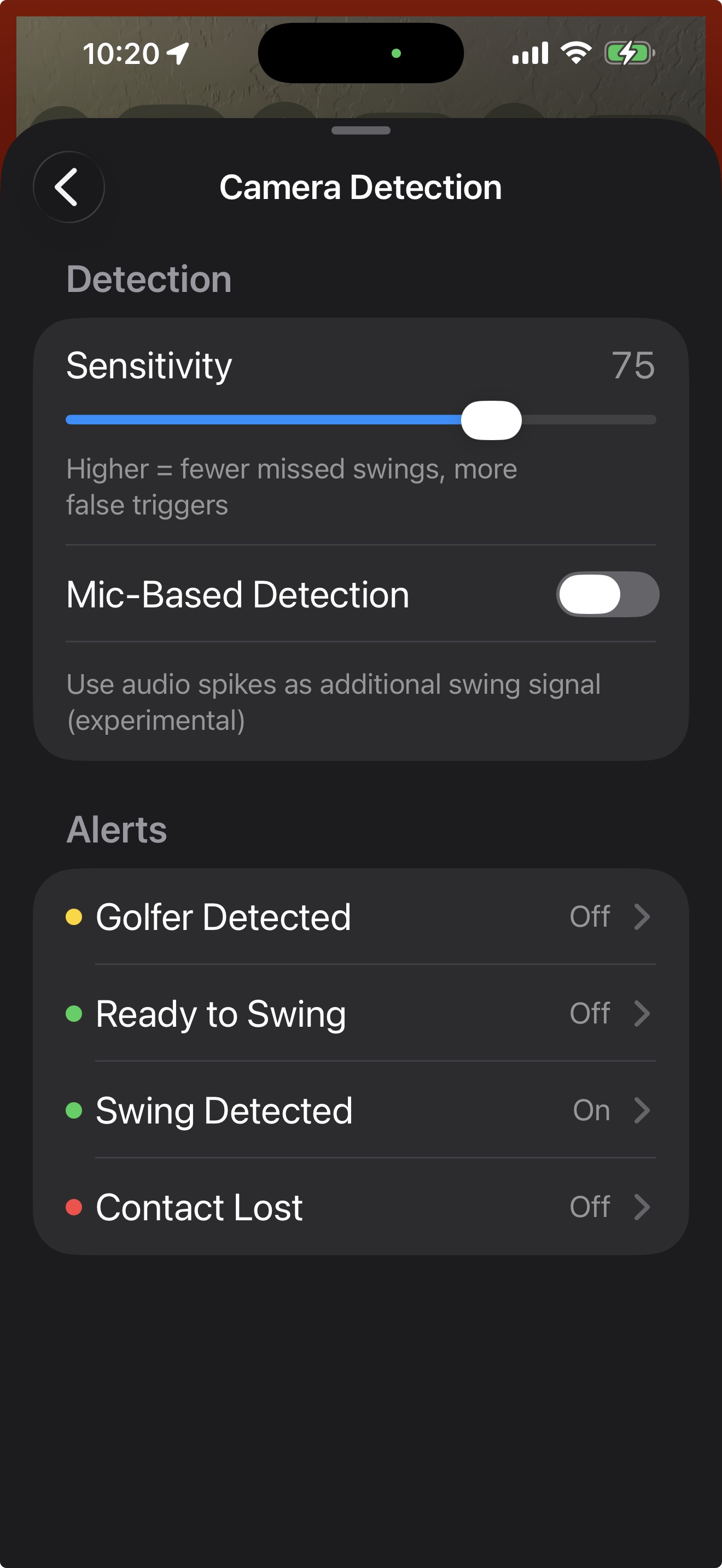
Default is 75. That's the value validated across our test corpus and works for most golfers in most conditions. The slider caption reminds you of the trade-off: Lower = full swings only • Higher = pitches and chips too.
What the slider actually controls
The slider adjusts two things — both about your hands during the swing:
- How fast your hands have to move (peak wrist speed during the downswing).
- How much arc your hands have to travel (how big the swing motion is, measured against your body).
That's it. Lower sensitivity raises both floors — only a full swing has enough speed and enough arc to clear them. Higher sensitivity lowers both floors — smaller motions like pitches and chips can clear them too.
| Low Sensitivity (1–30) | Default (75) | High Sensitivity (85–100) | |
|---|---|---|---|
| Hand speed floor | High — only fast hands clear it | Moderate | Low — even chip-speed hands clear it |
| Swing arc floor | Large — only big swings clear it | Moderate | Small — even chip-size arcs clear it |
| What gets detected | Full swings only | Full swings + most pitches | Full swings + pitches + chips |
Mental model: Low = "Only count obvious, full swings." High = "Count anything that looks like a swing."
What the slider does not control
How still you stand at address and how long you have to hold still do not change as you move the slider. Those are fixed at sensible values across the entire range. So if your concern is "my pre-shot routine is so busy the camera never arms," moving the slider won't help that part — you just need a brief moment of relative stillness (about about 0.2 seconds) before you start the backswing. Once that brief calm happens, the slider takes over and decides what motion counts as a swing.
See it live — the on-screen tuning panel
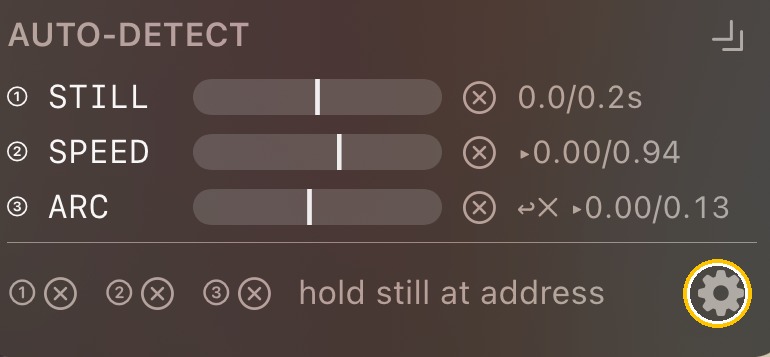
When you're in Auto-Detect (Camera) mode, MotionEdge shows a small AUTO-DETECT panel right on the capture screen. It's a live readout of the three things detection is looking for, updated as you move — so you can take a practice swing, watch exactly which checks passed and which didn't, and adjust the Sensitivity slider by eye instead of by guesswork.
How to read it
Three rows, one per check:
- ① STILL — how still you're holding at address. Turns green once you've been calm for about about 0.2 seconds. (This one is fixed — it doesn't change with the slider.)
- ② SPEED — your peak hand speed through the swing.
- ③ ARC — how big your swing motion is, and whether your hands return to the ball.
On each bar:
- The fill and the peak marker show what you actually did — your measured hand speed and arc. This is independent of the slider; it's simply your motion.
- The threshold tick (the small vertical line on the bar) is the level you have to clear — and this is the part the Sensitivity slider moves.
- A check passes when your peak marker crosses its threshold tick (Arc also needs your hands to return to address). When all three pass, the panel flashes ● CAPTURED and the clip is saved.
The bottom strip gives you a combined read and a plain-language hint — for example "hold still at address" or "swing harder + bigger arc" — so you always know what to change.
Using it to tune your sensitivity
This is the feedback loop the panel is built for:
- Take a practice swing in frame and watch rows ② Speed and ③ Arc.
- If a peak marker falls short of its tick (the check won't pass), either swing bigger or raise the sensitivity — raising sensitivity slides the tick left, toward your motion.
- If your waggle or practice swing is crossing the ticks when you don't want it to, lower the sensitivity — that slides the ticks right, so only a bigger, faster motion counts.
- Drag the slider while you watch the panel: lower sensitivity moves the ② and ③ ticks right (more motion required); higher moves them left (smaller motions like chips and pitches start counting). The ① Stillness tick stays put.
Open the slider right from the panel
Tap the settings gear (⚙) in the lower-right corner of the panel — highlighted above — to jump straight to the Camera Detection screen and its Sensitivity slider. Adjust it, take another swing, and watch the ticks move. That round-trip — swing, see the gap, nudge the slider, swing again — is the fastest way to dial in detection for your swing and your setup.
Minimize it
Don't need the detail? Tap the collapse chevron in the corner of the panel and it shrinks to a small pill with three colored dots — one per check — so you can still glance at pass/fail without it covering the screen. Tap the pill to expand again. Your choice is remembered between sessions.
My pre-shot routine or waggle keeps firing the camera
Lower the sensitivity. Drop it from 75 to 60, then to 50 if needed. Sensitivity above 90 deliberately catches the smallest motions — useful for short-game practice but it can pick up an unusually large waggle. Most golfers are fine at the default; if you have a particularly active routine, the 50–65 range tends to gate it out cleanly.
A few practical tips that work alongside the slider:
- Take practice swings outside the camera frame if you can. The system has no idea a practice swing isn't a real swing — to it, the motion looks identical.
- Aim for a brief, calm address. A quick steady moment over the ball — about about 0.2 seconds — is what tells the camera you're ready. After that, it's looking for swing motion.
- If you're chipping or pitching only, try sensitivity 85–95 and step out between attempts so practice swings don't grab a clip.
My real swings are being missed
Raise the sensitivity. Default 75 catches full swings reliably, but the floor for what counts as a "full swing" includes wrist speed your particular swing may sit just below — especially face-on captures with shorter clubs.
Try this order:
- Move sensitivity up by 10–15 points (e.g., 75 → 90). Confirms the gate is the issue.
- Check camera angle. Face-on captures with both hands visible are the most forgiving. Down-the-line with one hand occluded behind the body is slightly less responsive. Oblique angles (45°) are the hardest.
- Check distance. You should fill roughly 60–70% of the frame height. Too far away and the pose tracker can't resolve your wrists; too close and your full body doesn't fit.
- Check lighting. Strong backlight, low light, and heavily mixed (window + LED) lighting all hurt pose tracking. The Reducing Motion Blur — Shutter Speed and ISO FAQ walks through the shutter and lighting fixes.
Recommended starting points
| Scenario | Try this sensitivity |
|---|---|
| Range session, tripod, full swings | 70–80 |
| Range session, handheld | 75–85 |
| Down-the-line camera angle | 80–90 |
| On-course quick clips between shots | 80–90 |
| Chip / pitch / short-game practice | 85–95 |
| Active pre-shot routine with large waggles | 50–65 |
These are starting points, not rules. The slider is yours to tune — every golfer's swing is a little different, and small adjustments matter.
Still missing your swings? Send us the logs.
MotionEdge writes a per-swing detection trace to a rolling log on your device. If you've adjusted sensitivity and it still won't reliably catch your swings — or it's firing on motion that clearly isn't a swing — the fastest way for us to help is to look at that trace. It tells us exactly what the camera saw frame by frame: where your wrists were, how fast they were moving, whether body tracking dropped out, and which gate (speed or arc) blocked detection.
To send the logs:
- Open Settings → Support → Attach Log Files.
- Tap to compose a support email. MotionEdge bundles your recent detection traces (and other diagnostic logs) into a ZIP and attaches them automatically.
- Send to support@motionedge.ai. Include a one-line description of what you were trying to capture (e.g., "face-on chip shots, sensitivity 95, hands not detected") and roughly when it happened so we can find the right traces.
We can almost always tell from the trace what's going on — pose tracking, lighting, gate margins, or a real bug we should fix.
Under the hood (optional reading)
The auto-detect state machine walks through four states for every clip:
- Scanning — looking for a golfer in the frame.
- Golfer Detected — body found, waiting for a brief moment of calm at address.
- Ready — armed, watching for swing motion.
- Swing Detected — speed and arc gates both cleared; clip saved.
The Sensitivity slider only affects the speed and arc gates that decide step 3 → 4. It does not change how the camera finds you (step 1 → 2) or how stillness is measured at address (step 2 → 3) — those are fixed.
See also: Reducing Motion Blur — Shutter Speed and ISO for lighting and shutter fixes that help tracking. Filmstrip & Video Quality for stable-camera tips that help both detection and analysis.