
Remote vs Director — What Each Device Shows
MotionEdge Pro required. Manage Cameras and Go Remote are Pro features.
MotionEdge's Director + Remote system lets you capture your swing from several angles at once and review them on whichever screen is easiest to see. One or more devices act as Remotes — phones on tripods recording you — while another device, the Director, runs the session, shows the live feeds, and plays back each swing the instant it's captured. A favorite setup: stand the Director (an iPad or a Mac) on the ground in front of you, so you can glance down to see the live view and replay the swing you just made without walking back to the tripod.
The thing that trips people up is that the two roles don't show the same things — and that's deliberate. This article maps what each device shows and does, based on its role.
The two roles, in plain terms
- A Remote — a device on a tripod doing the capture. It runs its own pose detection and swing detection and writes the actual video file. It's the one looking at you swing. You can pair more than one — for example a face-on phone and a down-the-line phone — and each Remote records its own angle at the same time.
- The Director — the device you coordinate from: an iPad, a Mac, or a second phone. It shows every Remote's live feed, lets you kick off captures, and replays each swing the moment it's recorded. A Mac, with its big screen, makes an excellent Director for studying detail between shots.
These names come from the on-screen labels: the coordinating device shows a Director view, and each tripod device shows a Remote view. The most common setup is iPad or Mac as Director + one or more iPhones as Remotes, but any combination works — what matters is which device is recording you.
The Director can also use its own camera as another feed. On a Mac that's the built-in webcam (or a Continuity Camera); on an iPad or phone it's the device's own lens. So a Director propped in front of you can both coordinate the session and contribute an angle of its own.
You pick the primary camera. When several cameras are running, you choose which one is the primary for auto-detect. That camera's swing detection is what arms the capture and drives the shared state border — the others record their angles right alongside it. Switch the primary whenever you want a different camera to be the one calling the swing.
Naming each camera's angle
Pairing itself — they do not need the same Wi-Fi — is covered in Setting Up Remote Camera and Remote Camera Without the Same Wi-Fi. What's worth calling out here is what you do as you connect each Remote: you give it a camera angle.
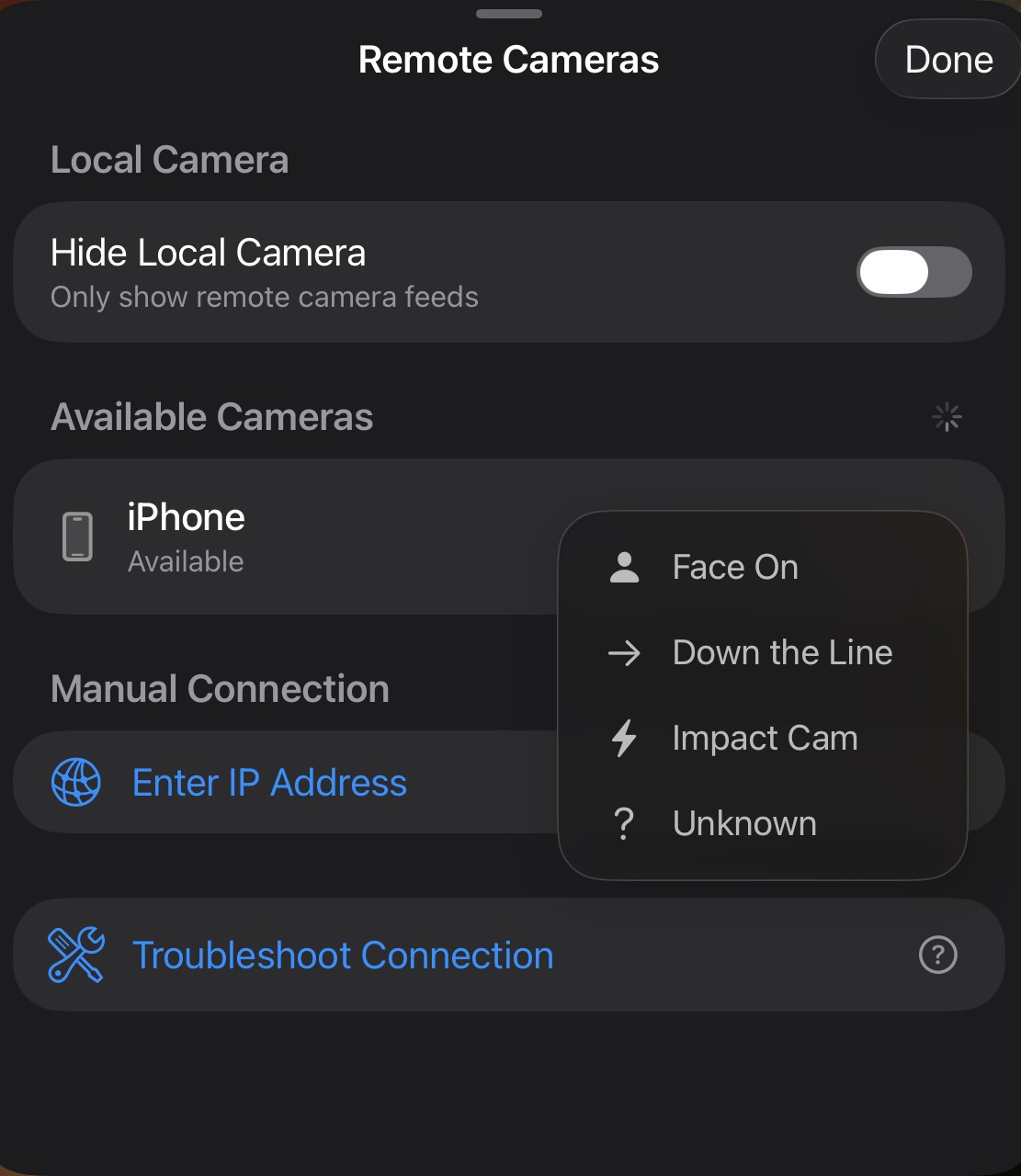
Pick Face On, Down the Line, Impact Cam, or Unknown. The angle you choose is saved with every swing that camera records, so your filmstrips, comparisons, and the AI Coach all know which view they're looking at — without you labeling clips by hand. Name each Remote as you connect it and a multi-camera session sorts itself out.
One related toggle on this sheet: Hide Local Camera shows only the remote feeds, hiding the Director's own camera tile. Leave it off to keep the Director's camera as another angle.
The connected-camera menu — change angle, run diagnostics, disconnect
Once a camera is connected it moves to the Connected list, showing its angle, a live frame-rate readout, and a PRIMARY badge on whichever camera is driving auto-detect. Tap the … menu on a connected camera for its controls:
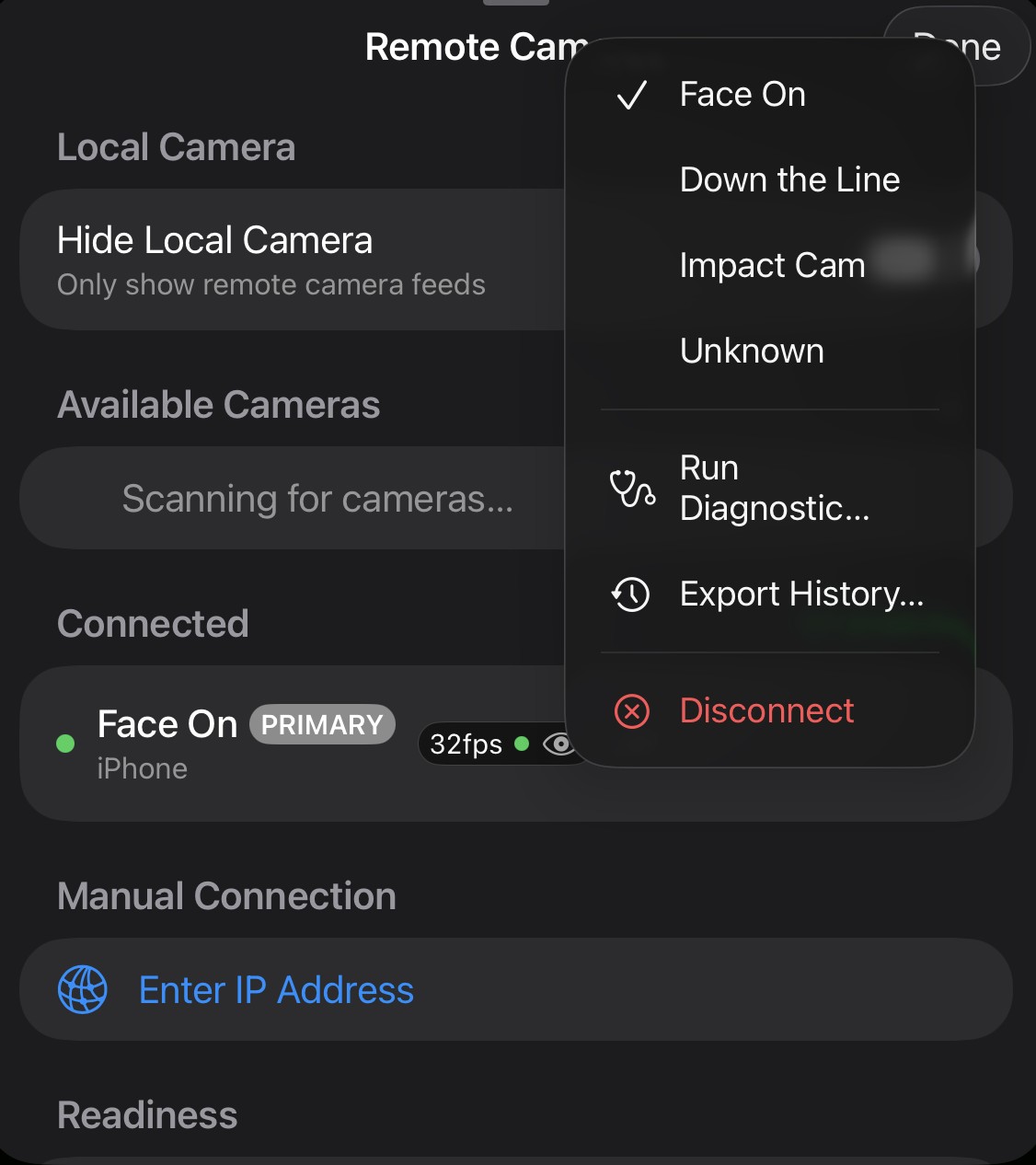
- Change the angle — re-assign Face On / Down the Line / Impact Cam / Unknown if you got it wrong or moved the camera.
- Run Diagnostic… — checks the live connection and reports on bandwidth, frame rate, and latency. Reach for this first if a feed looks choppy, the frame rate drops, or a Remote keeps dropping out.
- Export History… — saves the recent connection history so support can see what happened over time.
- Disconnect — drops that Remote from the session.
If a feed is struggling, Run Diagnostic usually tells you whether it's a bandwidth problem (move closer to the router, or switch to a hotspot) or something else. For the deeper network walkthrough — hotspots, Private Wi-Fi Address, manual IP — see Remote Camera Troubleshooting.
The mental model
The split comes down to one principle: things that matter to the device watching you happen on the Remote. Things that matter to the human happen on the Director.
- Pose tracking and swing detection run where the camera is. There's no point sending pose landmarks across the network when the video feed is already there and the Director can see exactly what the Remote sees.
- Audio cues (tempo beeps, swing-detected chimes) belong with the person who needs to hear them. The Remote is on a tripod five feet away, often pointing away from you and behind your shoulder — it has no business making noise. The Director is in your hand.
- One signal cuts across everything: the state border (red / yellow / green / blue around the screen) showing whether the system is scanning, ready, or saving. That has to be visible everywhere — it's the at-a-glance "is the system ready for me to swing?" indicator, and you need it whether you're glancing at the tripod or your iPad.
Quick reference
| Feature | Remote (iPhone on tripod) | Director (iPad, Mac, or second phone) |
|---|---|---|
| State border (red / yellow / green / blue) | Yes — local detector state | Yes — shown on the primary tile |
| Live skeleton overlay | Yes, if turned on in this device's Capture Settings | No — pose data isn't sent over the wire |
| Detection trace logs (the on-device per-frame record) | Yes, if turned on in this device's Capture Settings | No — each device logs only its own detection |
| Audio cues (tempo beep, swing-detected chime, alerts) | No — suppressed even if alerts are toggled on | Yes — honors the Director's Capture Settings |
Why doesn't the skeleton show on my iPad?
Because the skeleton is being drawn by whichever device is running pose detection — and that's the Remote, not the Director. The Remote is the one with the camera trained on you; it sees the joints and draws the lines.
We don't send the pose data over the wire to the Director for two reasons:
- Latency. Pose landmarks are a stream — 30 or 60 sets per second. Pushing that to the Director over Wi-Fi would add a noticeable delay between your motion and the overlay, which defeats the point of having a live skeleton in the first place.
- It's not buying you anything. The Director already shows the live video feed from the Remote. The skeleton would just be a duplicate of what's on the Remote's screen, lagged by a beat.
If you want to verify the skeleton is rendering correctly during setup, turn it on the Remote and look at the Remote. You can toggle it from that device's Capture Settings under skeleton overlay. After setup, most users leave it off on the Remote during normal capture — the Director's video feed is what they're watching.
Why did my iPhone on the tripod not beep when it detected a swing?
This is intentional. Audio cues on the Remote are suppressed even if alerts are toggled on, because the Remote is almost never the device the human is looking at or listening to. It's clamped to a tripod across the bay. A beep coming from over there doesn't help you — and on a quiet range or in a simulator, it would actually be irritating to anyone nearby.
The Director, on the other hand, is in your hand. It honors whatever you've set in its Capture Settings: tempo beeps, swing-detected chimes, voice alerts — those all play on the Director. See the Auto-Detect Sensitivity FAQ for the full list of alert options and how to tune them.
Where do my detection traces go?
To whichever device produced them. Each device that's running detection writes its own trace files locally — the Remote writes its trace based on what its own detector saw, and the Director writes its trace only if it's doing its own detection on its own camera (which is rare in a typical Remote + Director setup).
In a normal two-device session, the trace you care about is on the Remote — because that's the device that saw the swing and made the call. When you ask support to look at a missed-swing or false-fire trace, you want the trace from the Remote, not the Director.
To grab it: on the Remote, go to Settings → Support → Attach Log Files. The diagnostic bundle pulls in all the recent detection traces and attaches them to a support email automatically.
What about the state border? Why does that show on both?
Because it's the one signal you need everywhere. The state border is the colored frame around the screen — red while scanning for a golfer, yellow while detecting, green when armed and ready, blue while saving a clip. It tells you the system's state at a glance.
You might be glancing at the tripod to confirm the Remote is armed before you swing. You might be looking at the Director to confirm the clip saved. Either way, the colored border is what you're checking. So it has to be visible on both.
The Director shows the state border of the Remote that's currently being treated as the primary tile (since that's the device that decides when a swing is being captured). So when you see green on the Director, that means the Remote is armed and waiting. Same color, same meaning, two screens.
What if I want something on the device that doesn't have it?
For the most common asks:
- You want a beep when a swing is detected. Make sure alerts are on in the Director's Capture Settings. Your Director (iPad or Mac) will chime when the Remote completes a save.
- You want to see the skeleton during a session. Turn it on the Remote, before you walk away to the tripod. You can also walk over and glance at the Remote during setup to confirm the skeleton looks reasonable.
- You want to send the detection trace to support. Pull it from the Remote, not the Director. Settings → Support → Attach Log Files on the device that was doing the recording.
- You want another angle. Pair a second (or third) Remote — each records its own angle and runs its own detection. You choose which camera is the primary for auto-detect (the one that arms the capture); the rest record alongside it. The Director's own camera can be one of those feeds too.
When in doubt: the device with the camera on you is the source of truth
Anything related to what the system is actually seeing — pose, swing detection, recording — lives on the Remote. Anything related to what you, the human, are doing with the session — kicking off captures, monitoring, reviewing, getting feedback — lives on the Director.
Once the split clicks, the rest of the multi-device setup gets a lot easier to think about.
See also: Auto-Detect Sensitivity for tuning detection on the Remote. Apple Watch Modes for using the Watch as a remote trigger or a third device. Remote Camera Troubleshooting when the two devices aren't finding each other.