Getting Started with MotionEdge
What are the three main tabs?
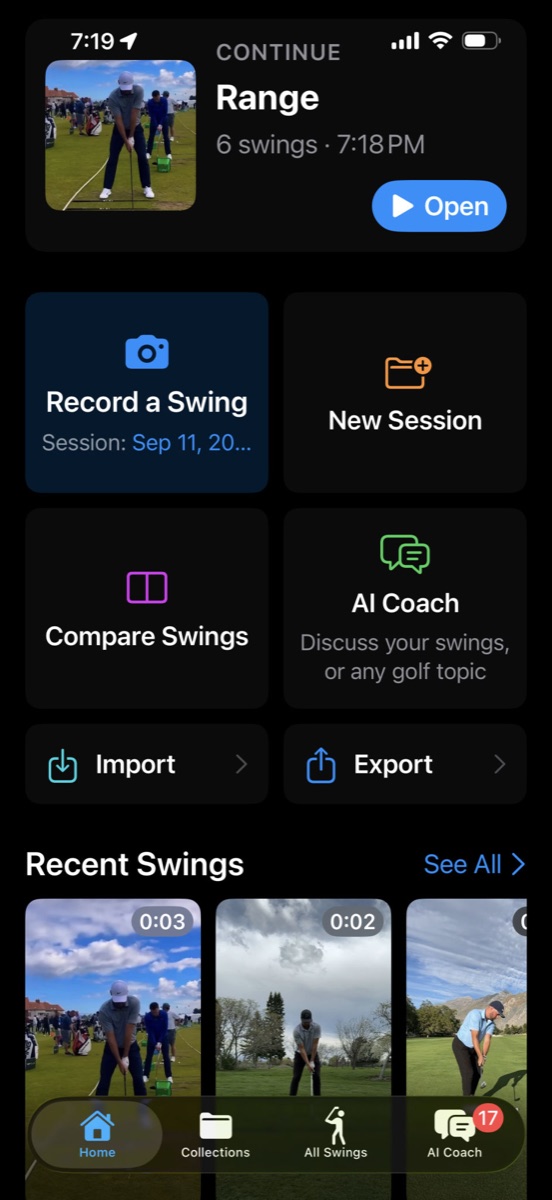
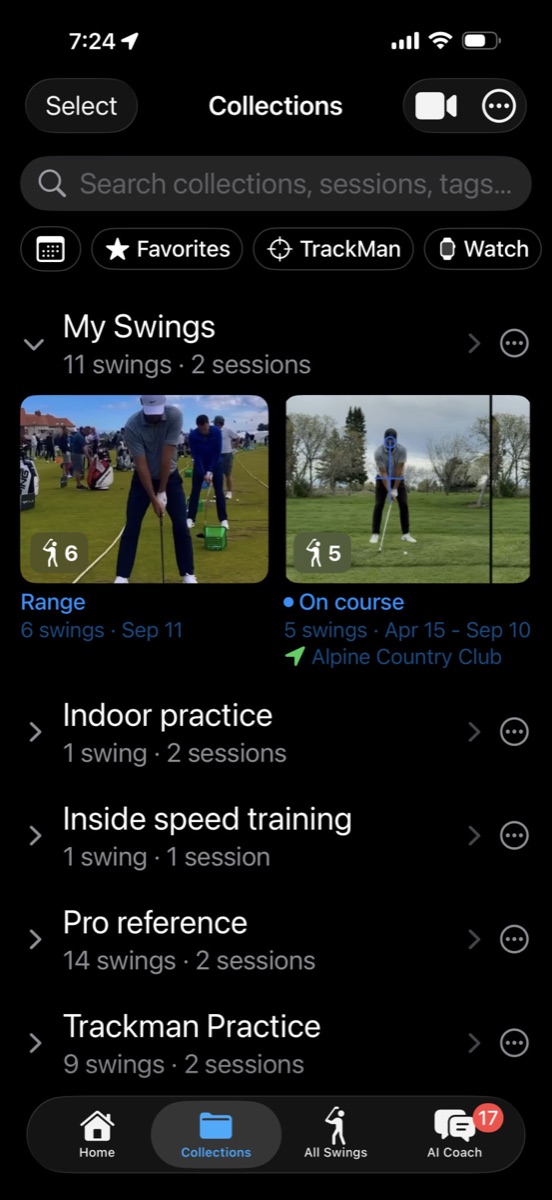
MotionEdge is organized around three tabs at the bottom of the screen:
- Sessions — Your practice sessions, organized like folders. Each session holds the swings you recorded that day at the range, during a lesson, or on the course. This is your home base.
- All Swings — Every swing across all sessions in one chronological view, grouped by day. A quick way to find anything without remembering which session it's in.
- AI Coach — A chat interface where you can talk to an AI coaching assistant about your swing. Attach your videos and get specific, data-driven feedback.

How do I create my first session?
- On the Sessions tab, tap the ⋯ menu in the top-right corner
- Tap "New Session"
- Give it a name (like "Range Session" or "Lesson with Coach") — or leave it blank and the app will name it with today's date
- Tap Create
You're now inside your session, ready to add swings.

How do I record a swing?
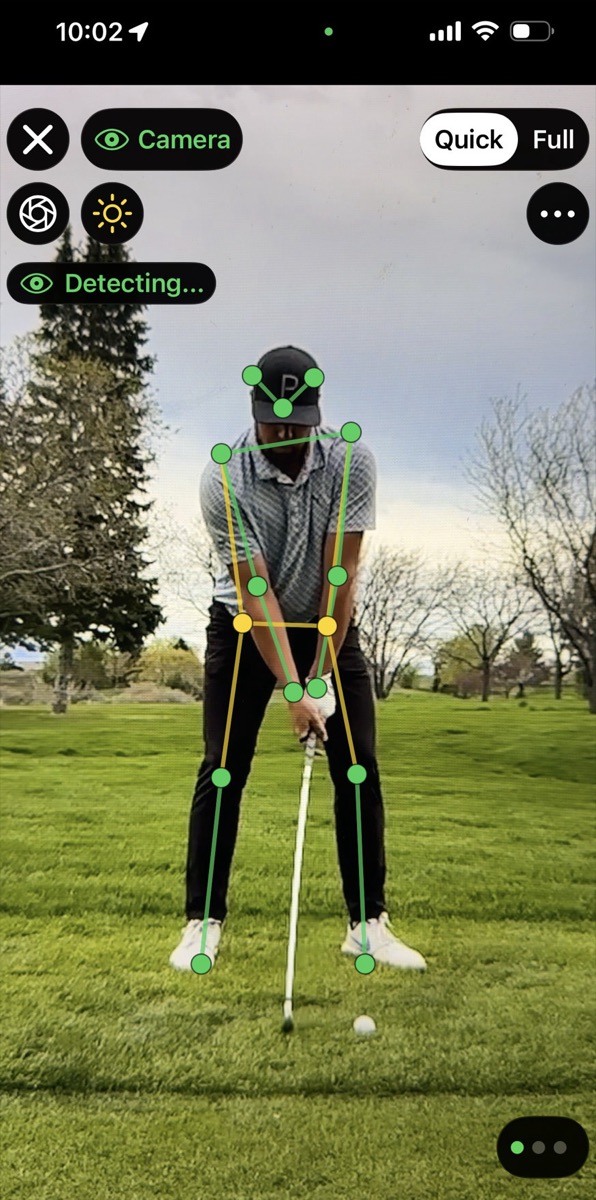
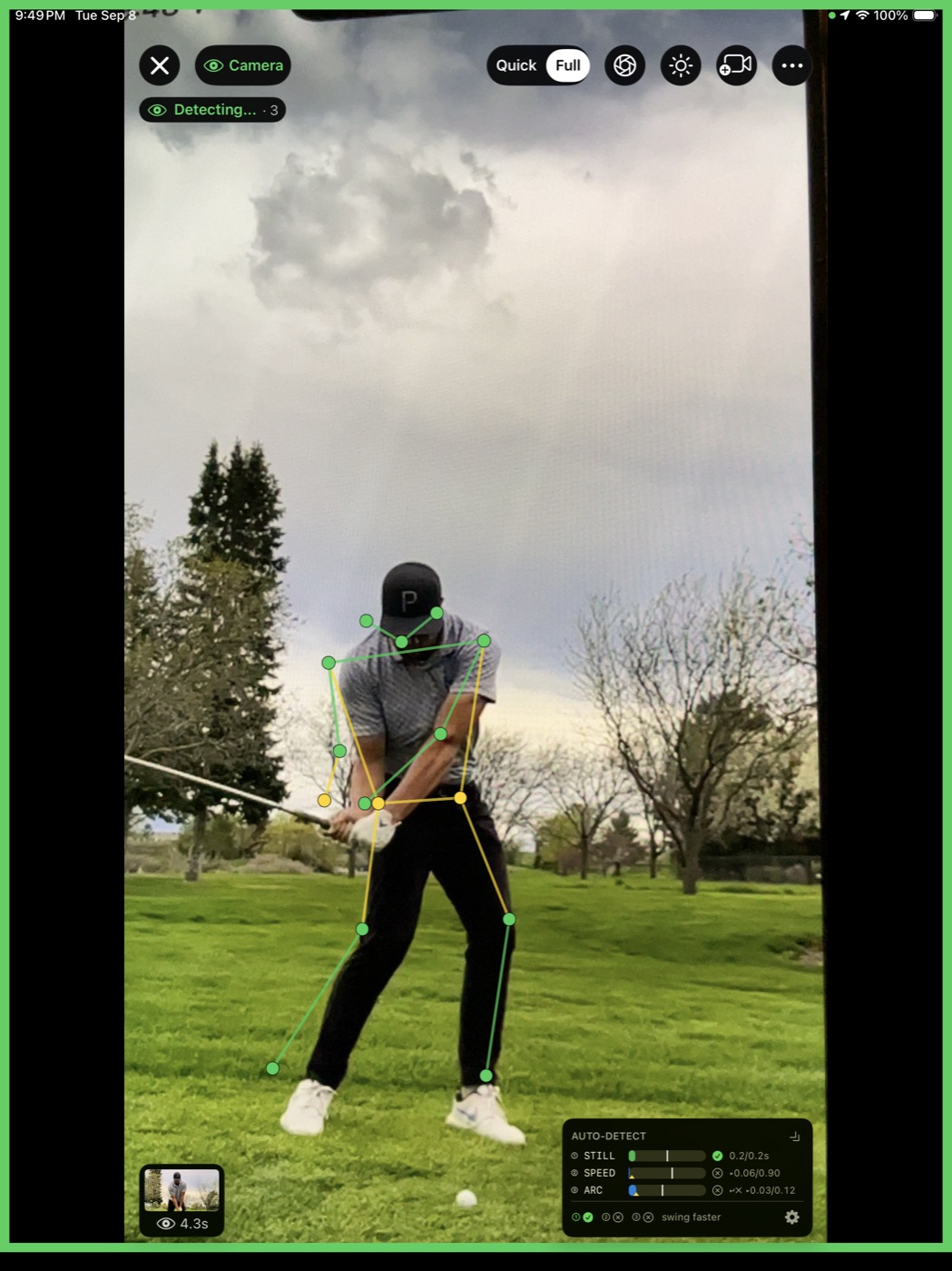
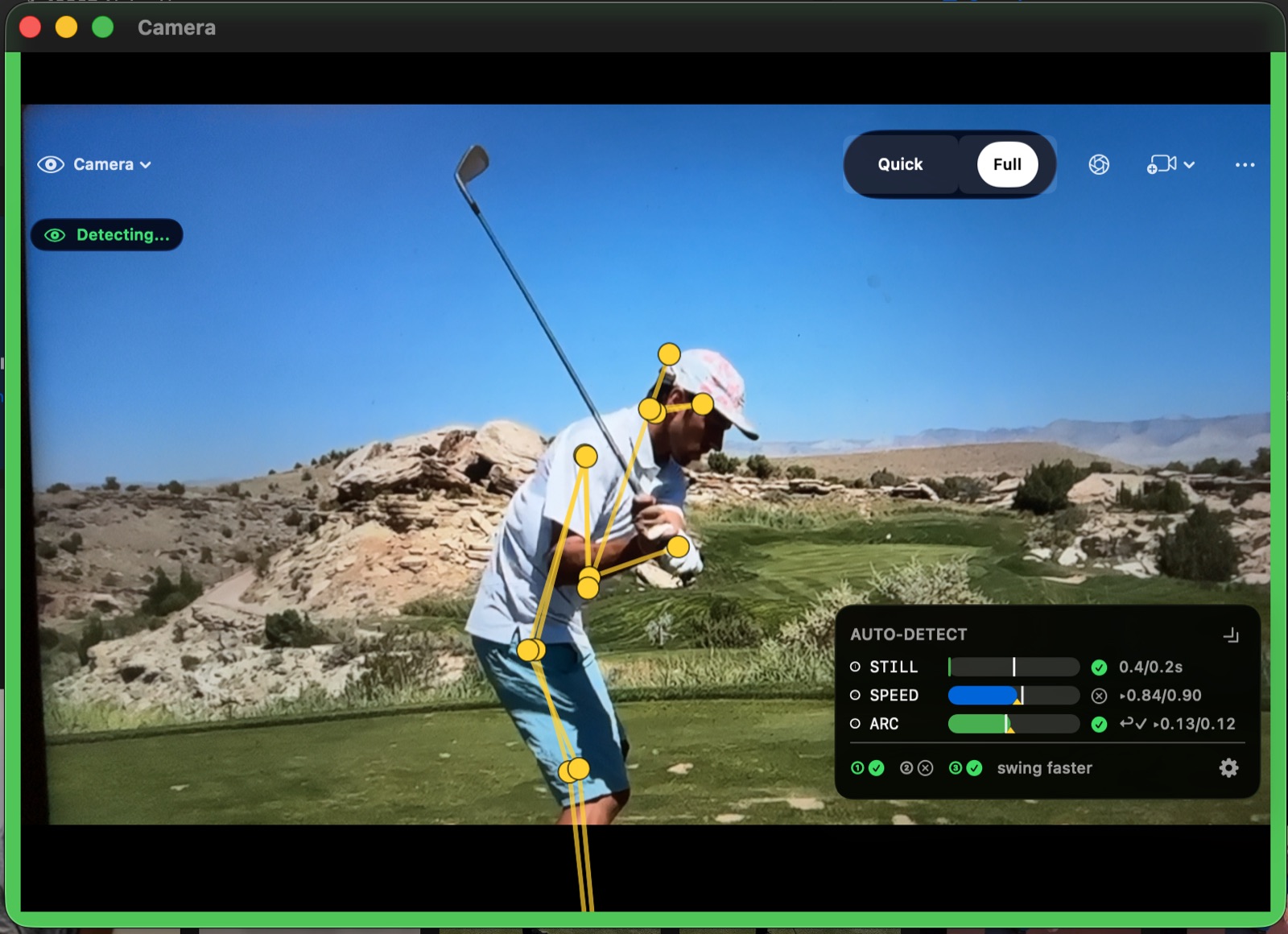
Tap the camera icon in the toolbar. The full-screen camera opens.
Set up your phone on a tripod (face-on or down-the-line) and start hitting. MotionEdge's auto-detection watches for your swing — when it sees one, it captures it automatically. No need to start and stop recording for each swing.
After recording, you'll review the captured swings and save them to your session.
Tip: A stable tripod gives the best results for auto-detection and pose tracking. Even a basic phone tripod from Amazon works great.

What's the difference between Quick Review and Full Review?
When the camera detects a swing, MotionEdge needs to know what to do with it. You choose the behavior in Capture Settings (tap the gear icon in the camera view):
-
Quick Review — after each detected swing, you get a lightweight replay. Tap Save to keep it, or dismiss to discard. This is the fastest workflow for range sessions where you're hitting lots of balls and only want to save the interesting ones. Turn on Auto-Save to skip the review entirely and save every swing automatically.
-
Full Review — swings accumulate while you hit, and when you stop recording you get a full review screen showing every captured swing. You can scrub through each one, delete the ones you don't want, and save the rest. Best for lessons or focused practice where you want to review everything carefully before committing.
You can also adjust the Clip Window — how many seconds before and after impact to capture (default: 2.5s before, 2.0s after). And Audio Alerts give you an audible confirmation when a swing is detected, so you know the app is working without looking at the screen.

Can I use my iPhone as a remote camera?
Yes — you can use your iPhone as a remote camera while controlling everything from your iPad. Set your iPhone on a tripod to record, and use your iPad on the ground in front of you to start/stop recording and review swings instantly — no walking back and forth to your tripod.
To set up:
- Open MotionEdge on both devices (same iCloud account)
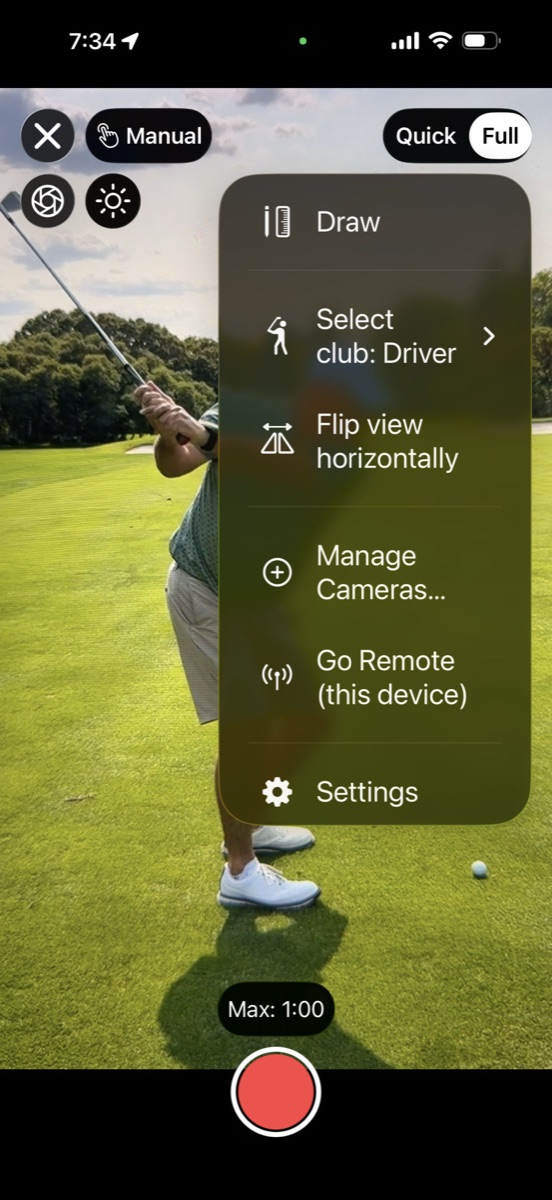
- On your iPhone (the camera), open the camera view and tap the lens selector → Go Remote (this device) — this puts the iPhone into remote camera mode
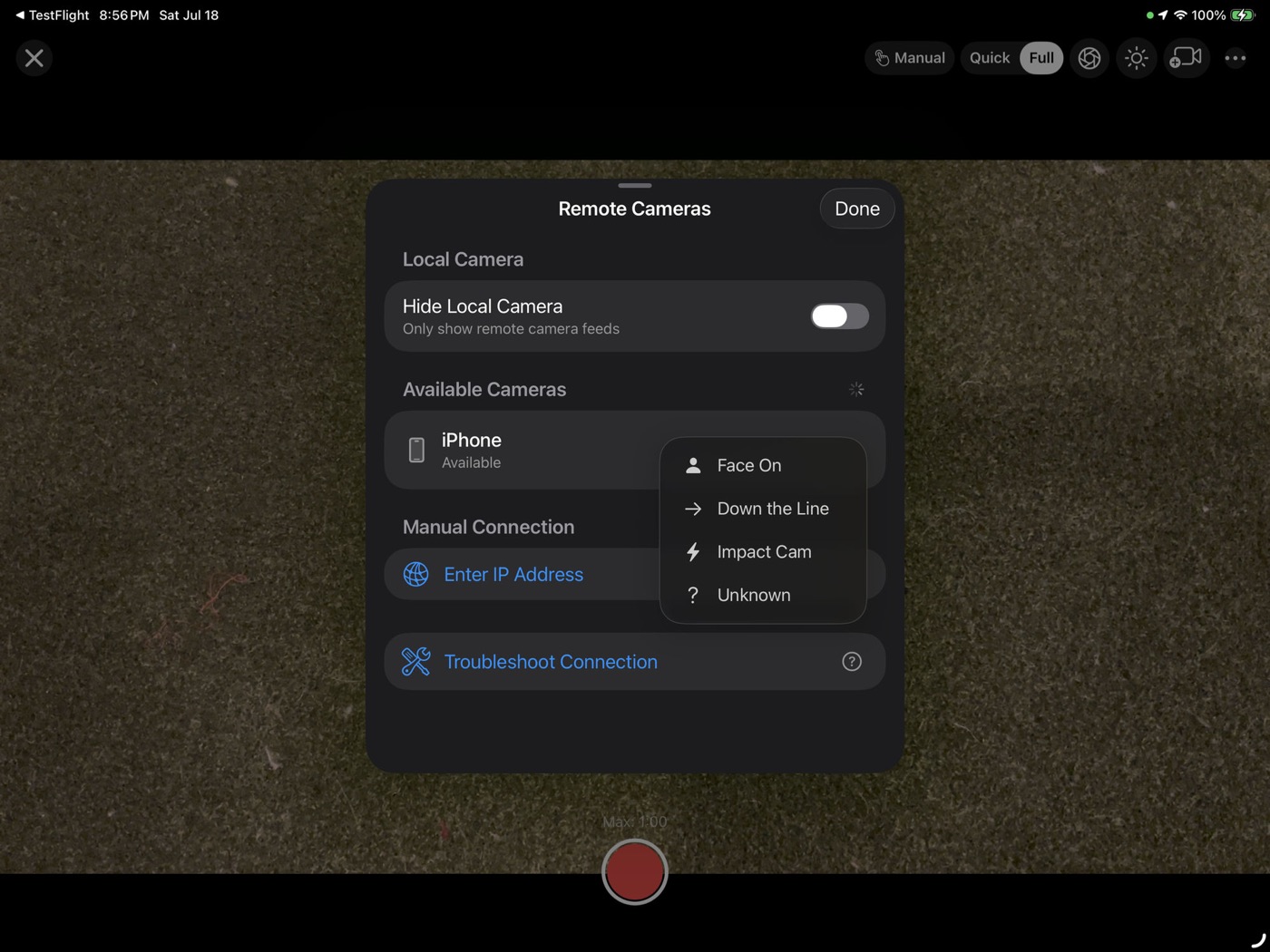
- On your iPad (the controller), open the camera view and tap Manage Cameras... — your iPhone appears under Available Cameras. Tap Connect
Once connected, your iPad shows a live preview from the iPhone's camera. Start recording from the iPad — the iPhone captures the video at full quality. When a swing is detected, it appears on the iPad for immediate review. You never have to leave your hitting position.
Tip: This is the best setup for solo practice. iPhone on a tripod behind you (down-the-line), iPad propped up in front of you. Hit, glance down, review — repeat.


How do I import a video I already have?
You don't have to record everything in the app. Import swing videos from anywhere:
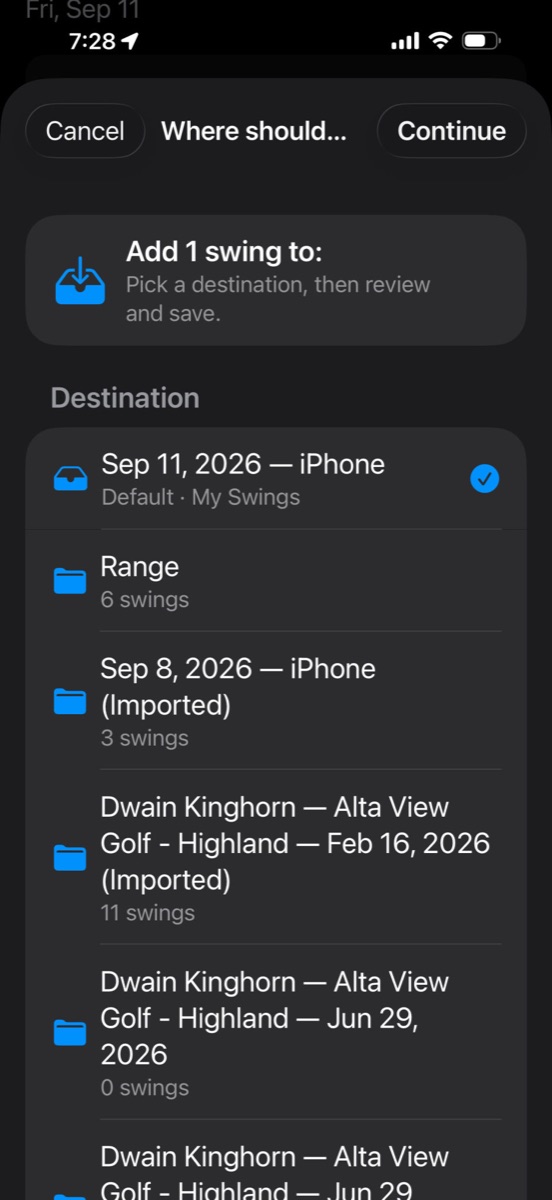
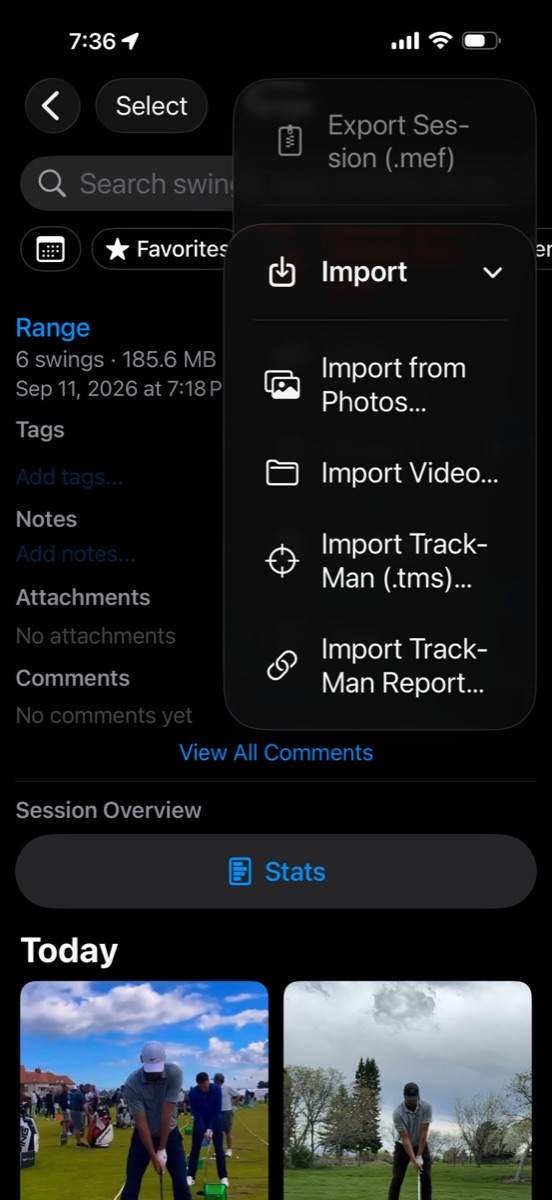
- From inside a session, tap the ⋯ menu → Import
- Choose your source:
- Photo Library — select videos from your camera roll
- Files — browse your device, iCloud Drive, or any cloud storage
- Select your video — the app auto-trims it to the swing region before saving
This is great for:
- Videos your coach recorded during a lesson
- Swing videos a friend sent you
- Pro swing videos from YouTube that you want to use as a reference
- Old swing videos from your camera roll that you want to analyze

Can I use TrackMan data with MotionEdge?
Yes — MotionEdge has deep TrackMan integration with three ways to get your radar data into the app:
- Import a TrackMan file (.tms) — Export a stroke file from TrackMan Performance Studio, then import it via ⋯ menu → Import → TrackMan (.tms). Each shot in the file becomes a swing in your session with full radar data attached.
- Import a TrackMan Report — Have a shared TrackMan report link? Tap ⋯ menu → Import → TrackMan Report and paste the link. MotionEdge pulls in the shot data directly — no file transfer needed.
- Connect live to a TrackMan — Connect directly to a TrackMan unit on the same network. MotionEdge captures video and receives radar data in real time, so every swing gets both video and ball flight data paired automatically — no export or import step required.
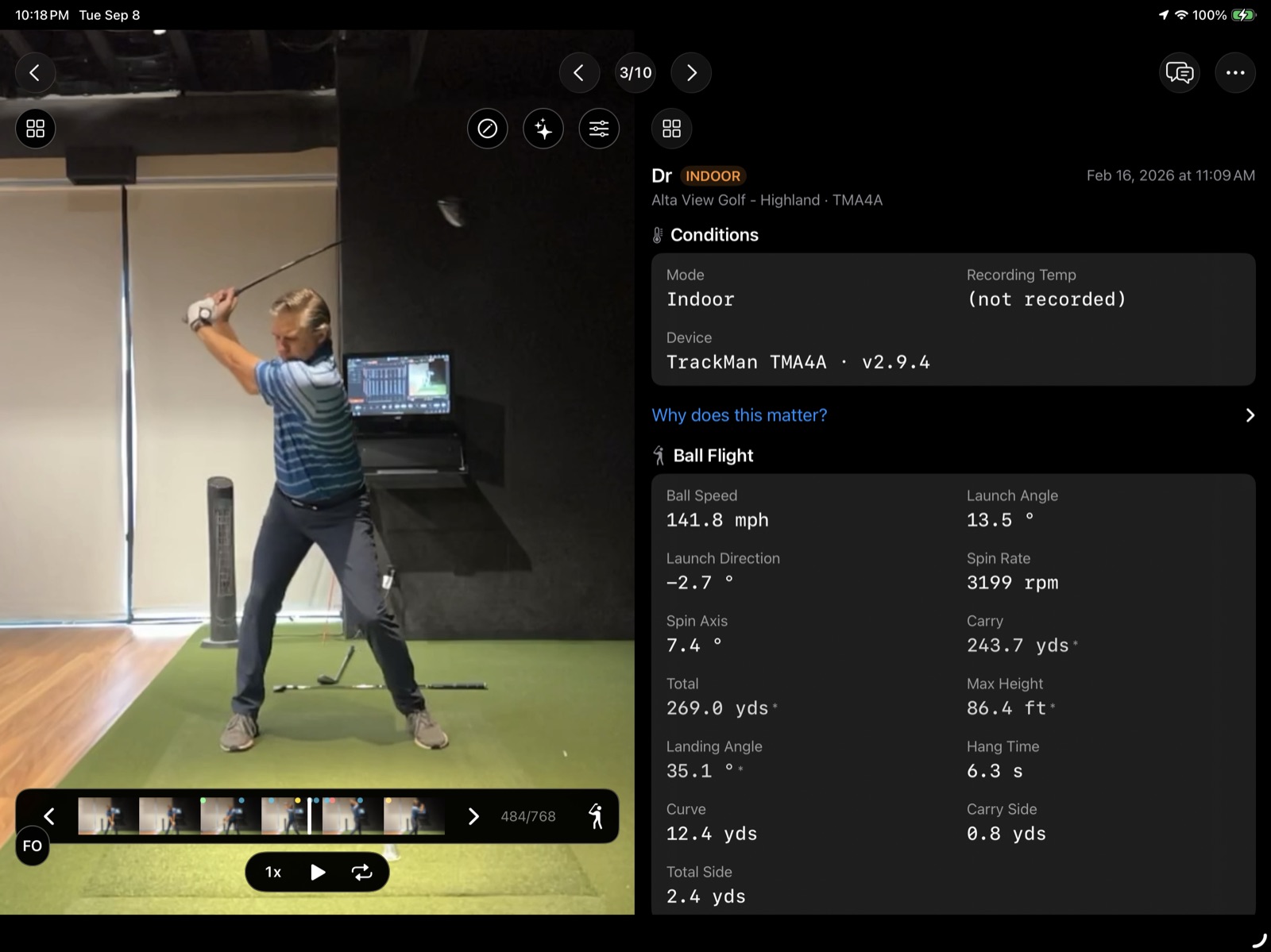
Once TrackMan data is linked to a swing, you can view it in the Swing Viewer by switching any panel to TrackMan Data. You'll see the full ball flight metrics — ball speed, launch angle, launch direction, spin rate, spin axis, carry, total distance, max height, landing angle, and more. The data is organized by club and includes the facility name and timestamp from your TrackMan session.
This is especially powerful combined with MotionEdge's video analysis — see your pose skeleton, filmstrip positions, and drawing annotations alongside the exact radar numbers for that swing. And when you use the AI Coach, it can reference both your body mechanics and your TrackMan data for complete, data-driven feedback.


How do I review my swing?
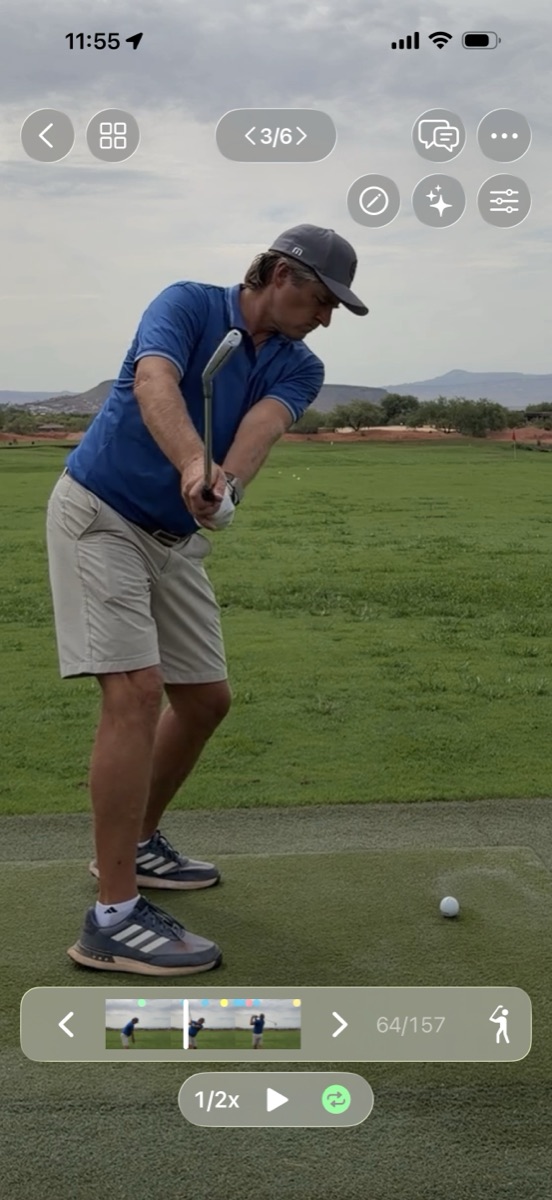
Tap any swing card to open the Swing Viewer. This is where the analysis happens.
The viewer has multiple panels you can configure. Here's what you'll use most:
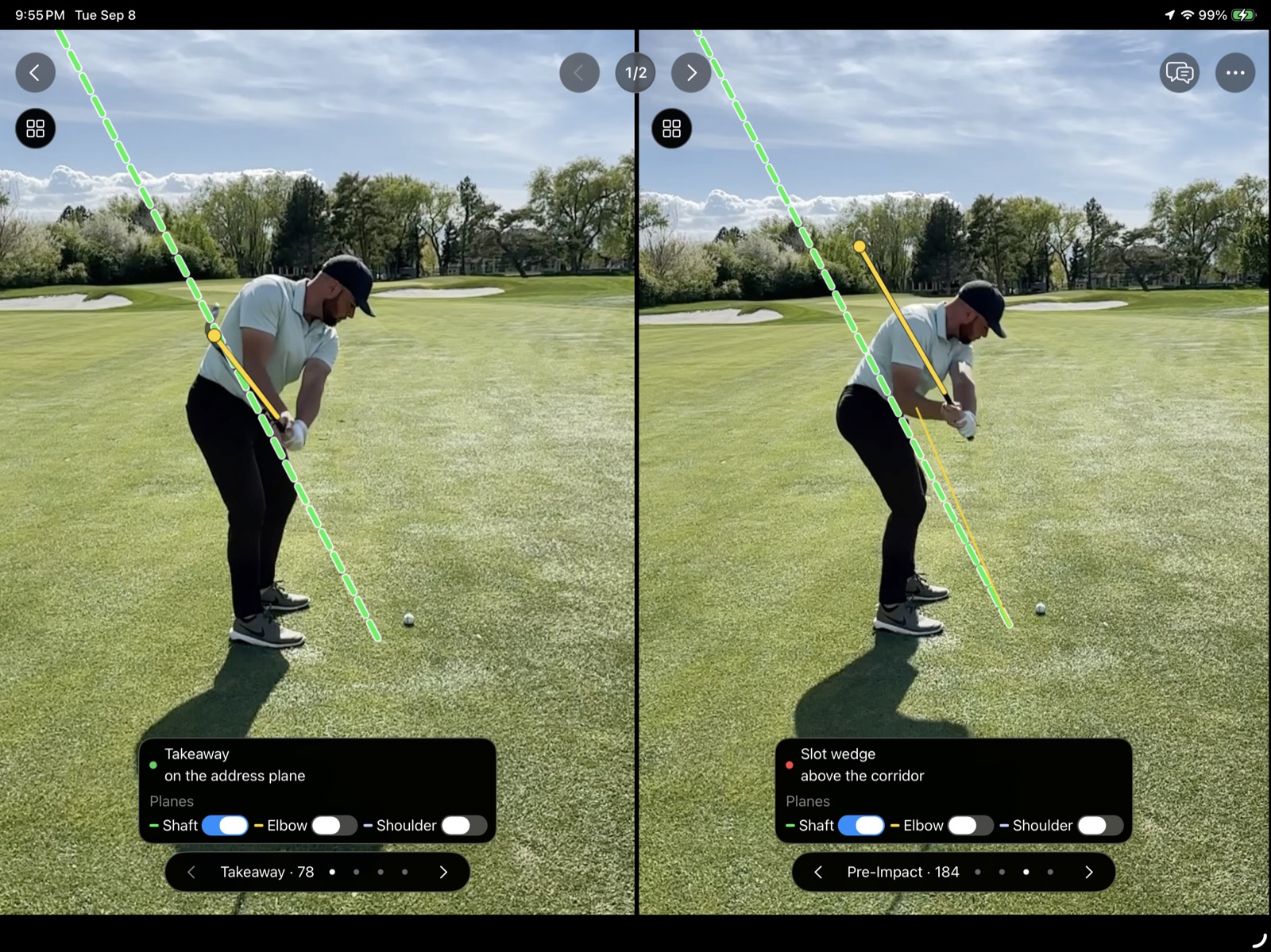
Video Player
Your swing video with frame-by-frame scrubbing. Pinch to zoom into any part of the frame. The pose skeleton overlays automatically — you'll see joints and bones tracked on your body throughout the swing.

Drawing Tools
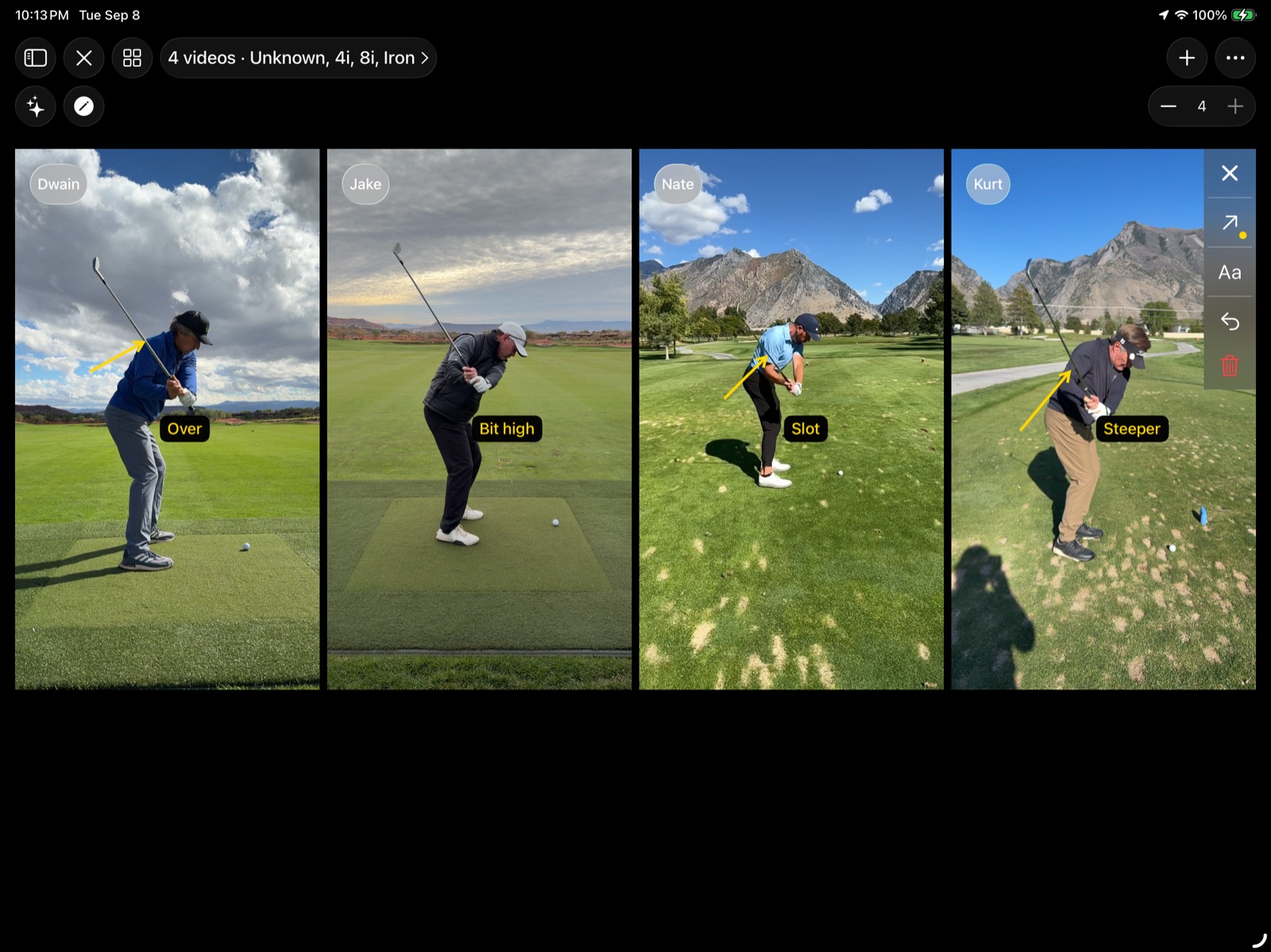
The video player includes a full set of drawing tools for annotating your swing. Tap the drawing toolbar on the right side of the screen to open the tool picker. Available tools:
- Line — draw straight lines to check alignment (shaft angle, spine tilt, target line)
- Arrow — point out specific positions or movements
- H-Angle — measure the hip-to-shoulder angle relationship
- Angle — measure any joint angle (knee flex, wrist hinge, spine tilt)
- Circle — highlight areas of interest (head position, hand path, ball contact)
- Draw — freehand drawing for quick notes or tracing
Each tool has width (thin, medium, thick) and color options (red, orange, yellow, green, blue, cyan, white). Your drawings are saved with the swing — scrub to any frame and annotate what you see. Tap Select to move or resize existing drawings, or tap the trash icon to delete them.

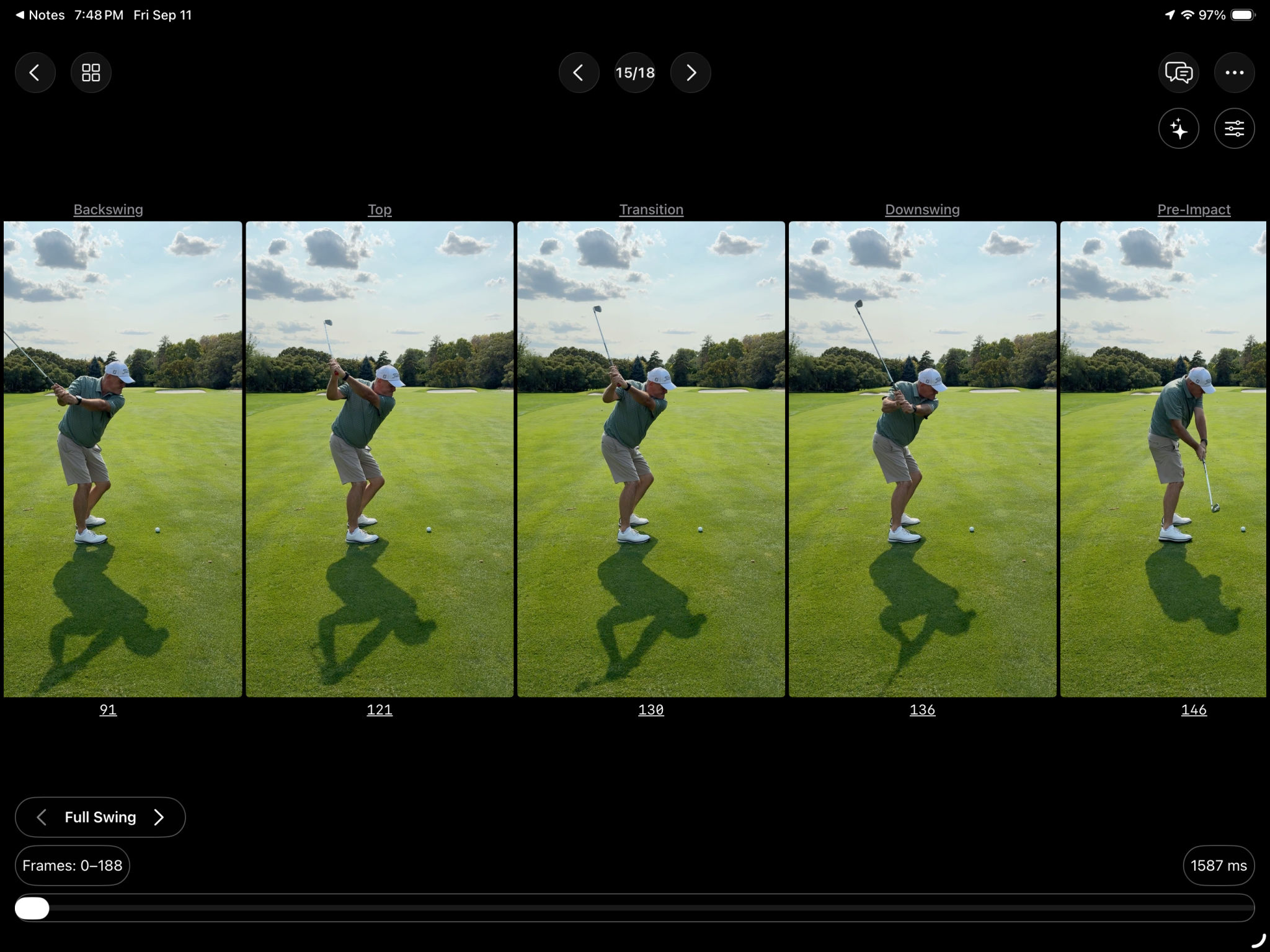
Filmstrip
Your swing broken into key positions — address, backswing checkpoints, top of backswing, transition, downswing, impact, follow-through, and finish. Each frame is a snapshot of where you were at that critical moment. This is one of the best ways to spot issues at a glance.

Setup Overlay
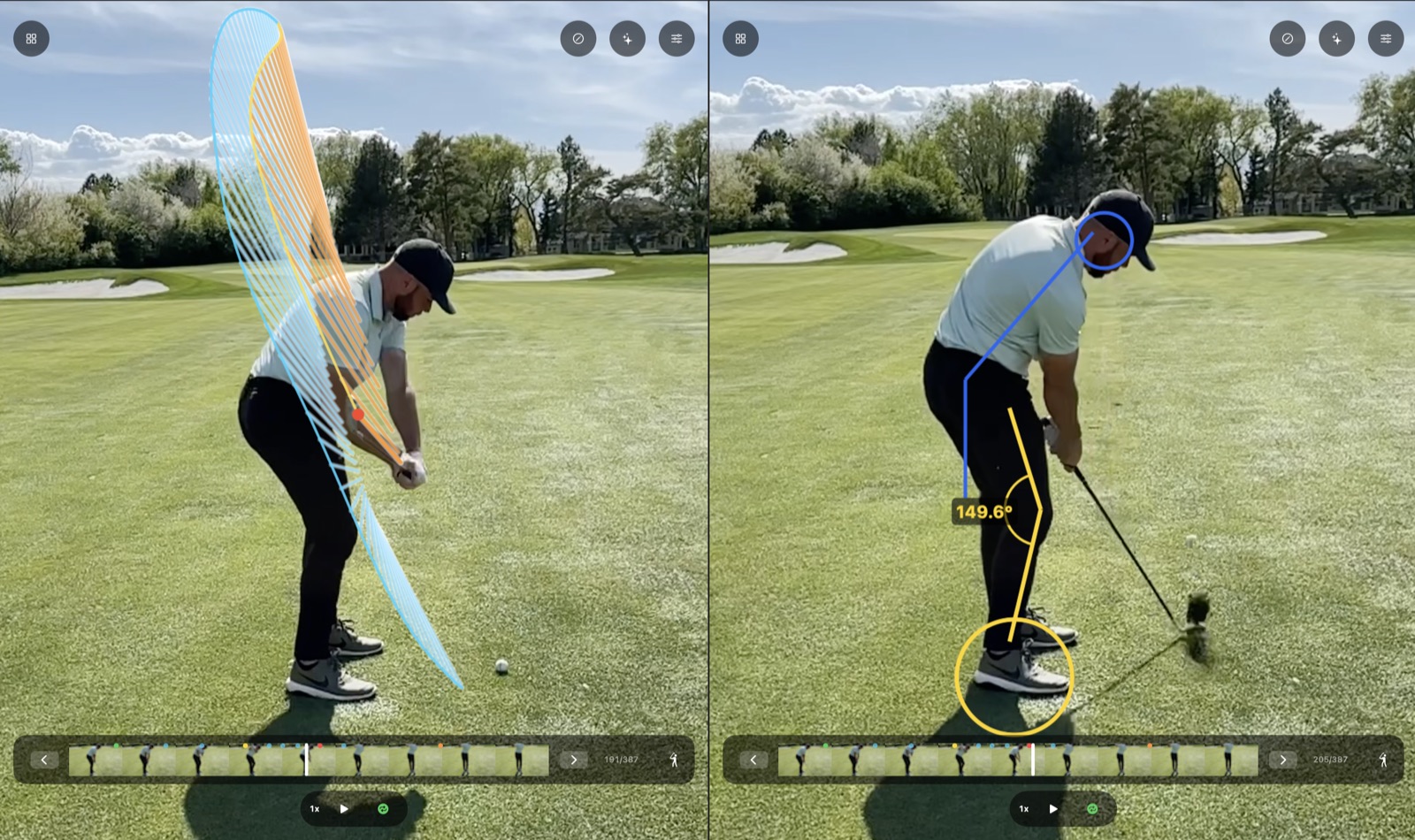
One of the most revealing overlays. The setup overlay captures your address position and draws it on top of your current frame as you scrub through the swing. You can instantly see how your posture changes from setup to impact — spine angle, head movement, hip slide, knee flex. The orange lines show your address position, the blue lines show where you are now. Where they diverge is where you're losing your posture.

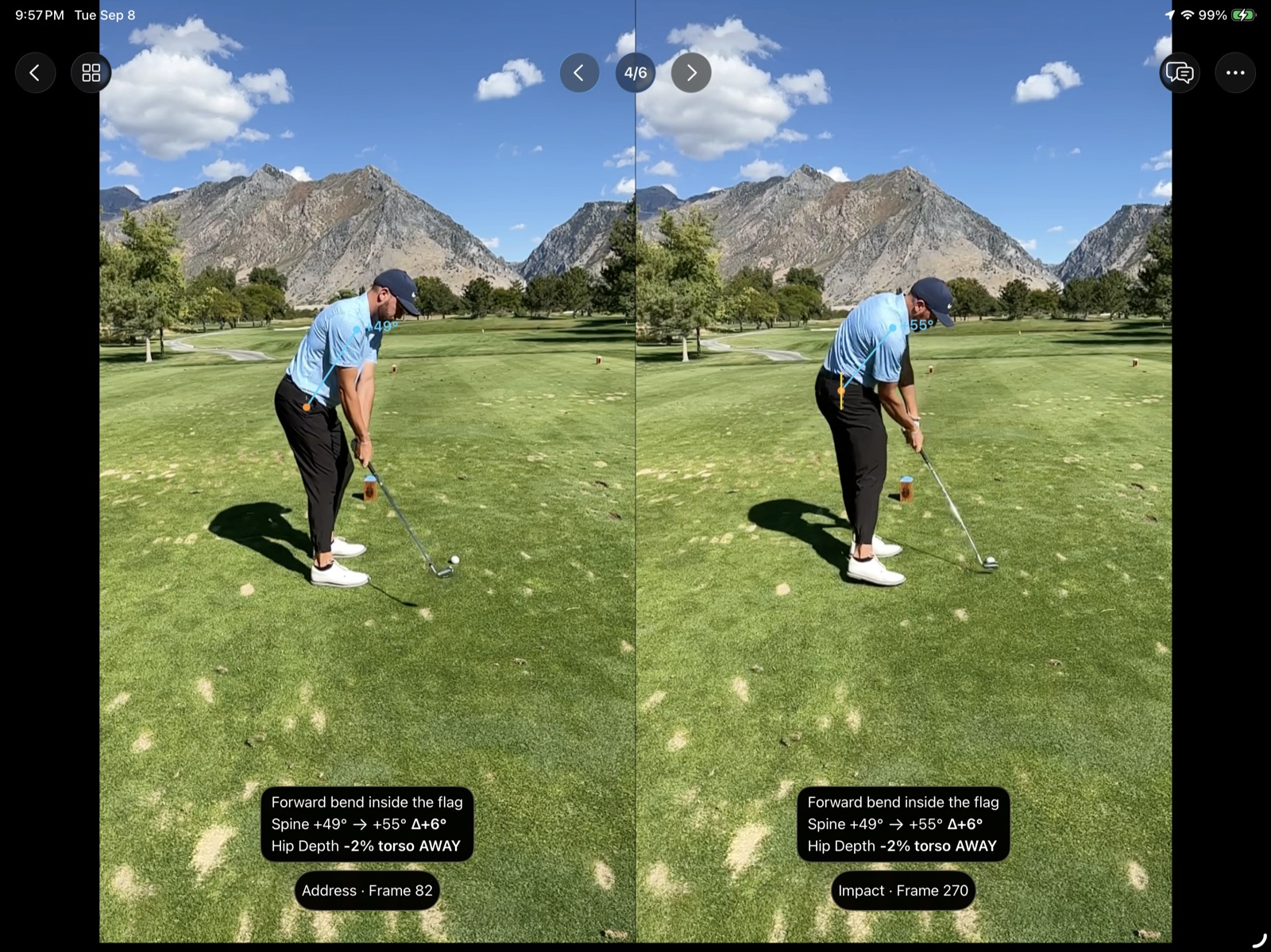
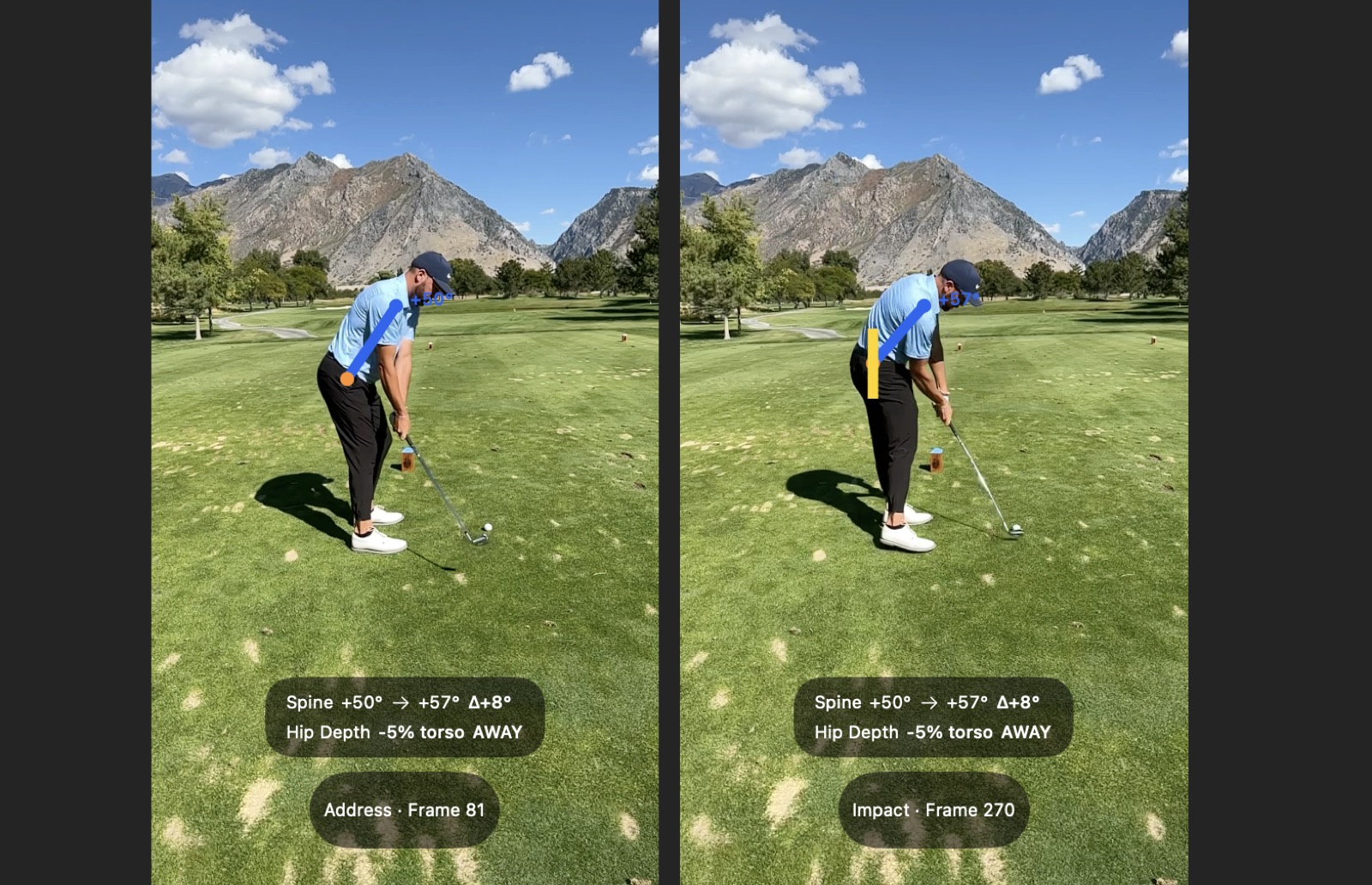
Posture Check
A side-by-side comparison of your address position vs impact position. See how your spine tilt, knee flex, and posture held up through the swing. If you're standing up through impact or losing your spine angle, you'll see it here immediately.
Hand Path Check
Compares your backswing hand path to your downswing hand path. Shows whether you're coming over the top (outside-in) or swinging from the inside. Includes an over-the-top percentage measurement.
Switching panels: Tap any panel's header to change it to a different view. There are 10 panel types available, and you can arrange them in single, split, or quad layouts.
How do I compare swings side by side?
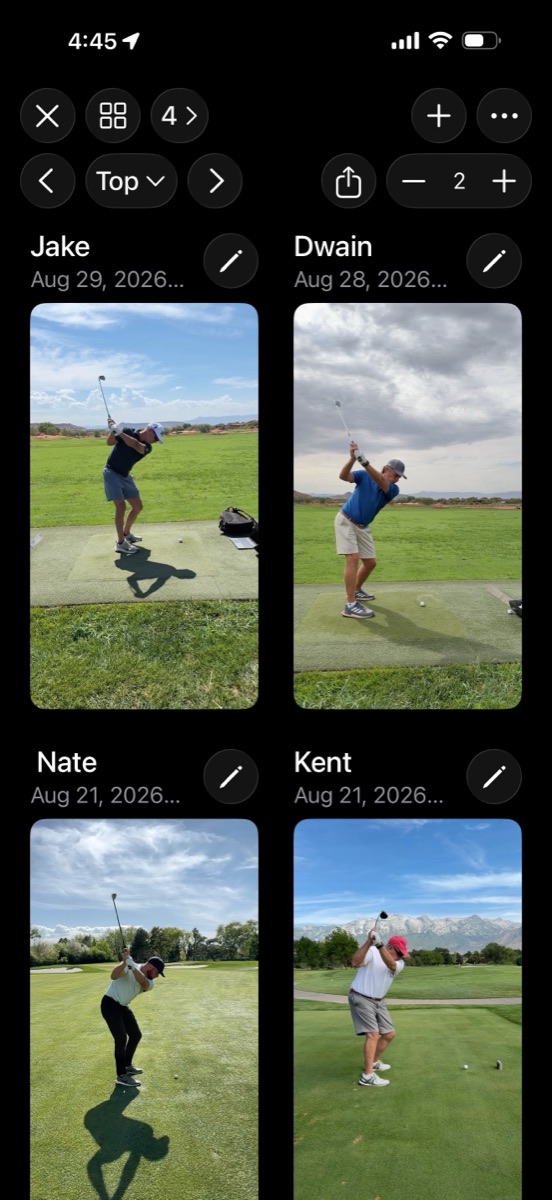
Comparing swings is one of the most powerful ways to track your progress or spot differences between a good swing and a bad one.
- From your session, tap "Compare Swings"
- Select 2 or more swings (up to 10)
- Choose how you want to compare:
- Single Frame — see the same swing position across all selected swings
- Filmstrip — full filmstrip strips stacked for visual comparison
- Posture Check — address and impact frames aligned across swings
- Video — independent video players side by side
This is especially powerful when you import a pro swing as a reference video and compare it to your own swing at the same positions.

How do I see stats across my session?
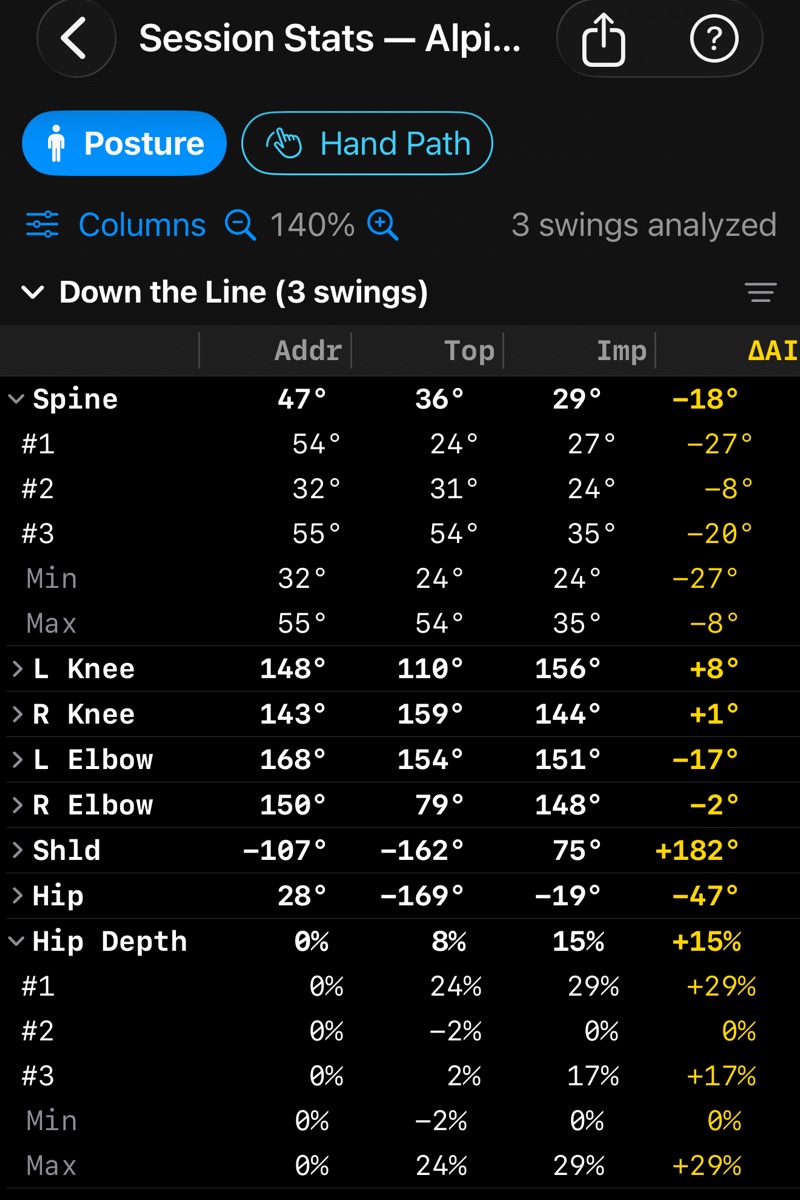
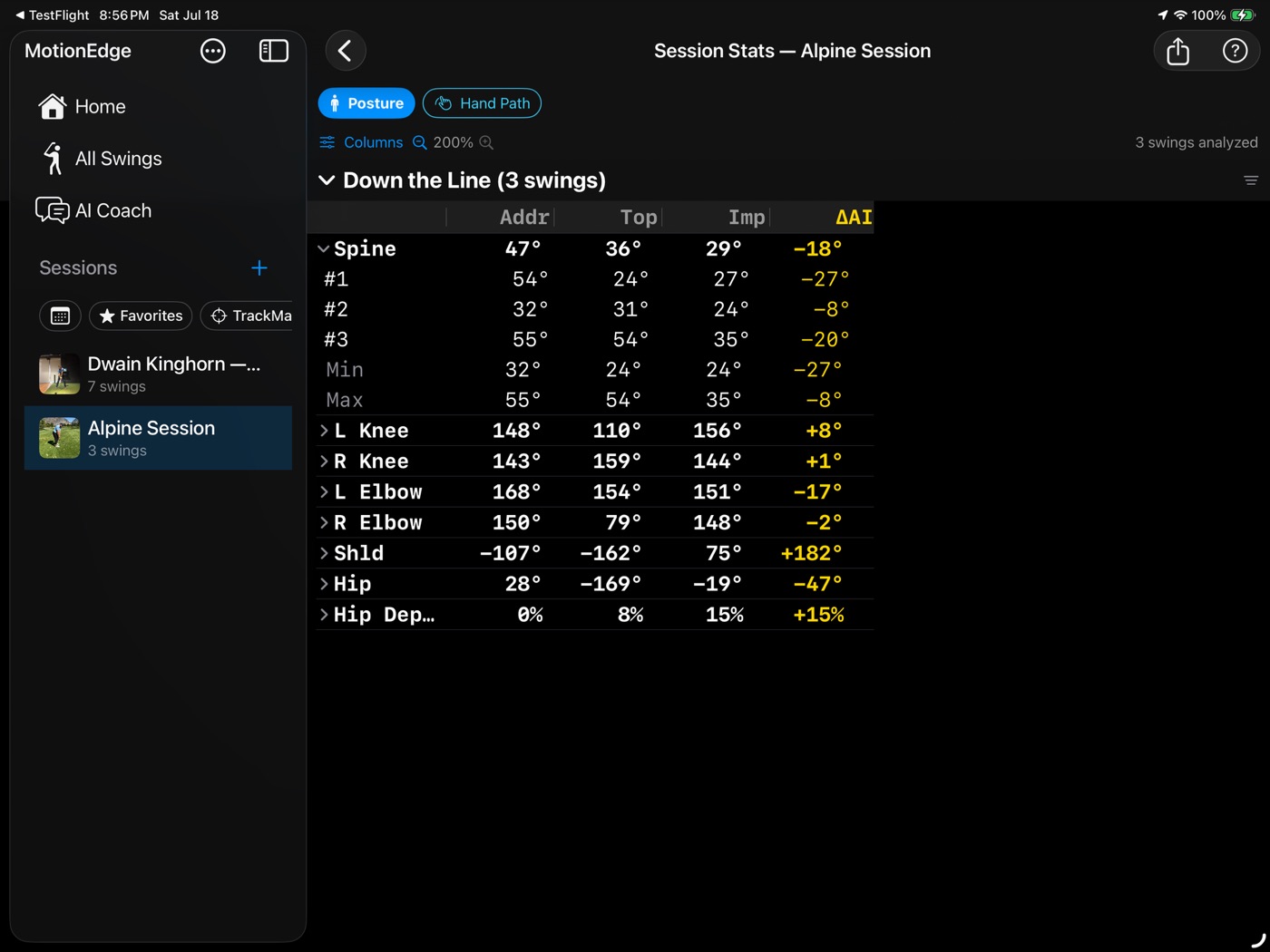
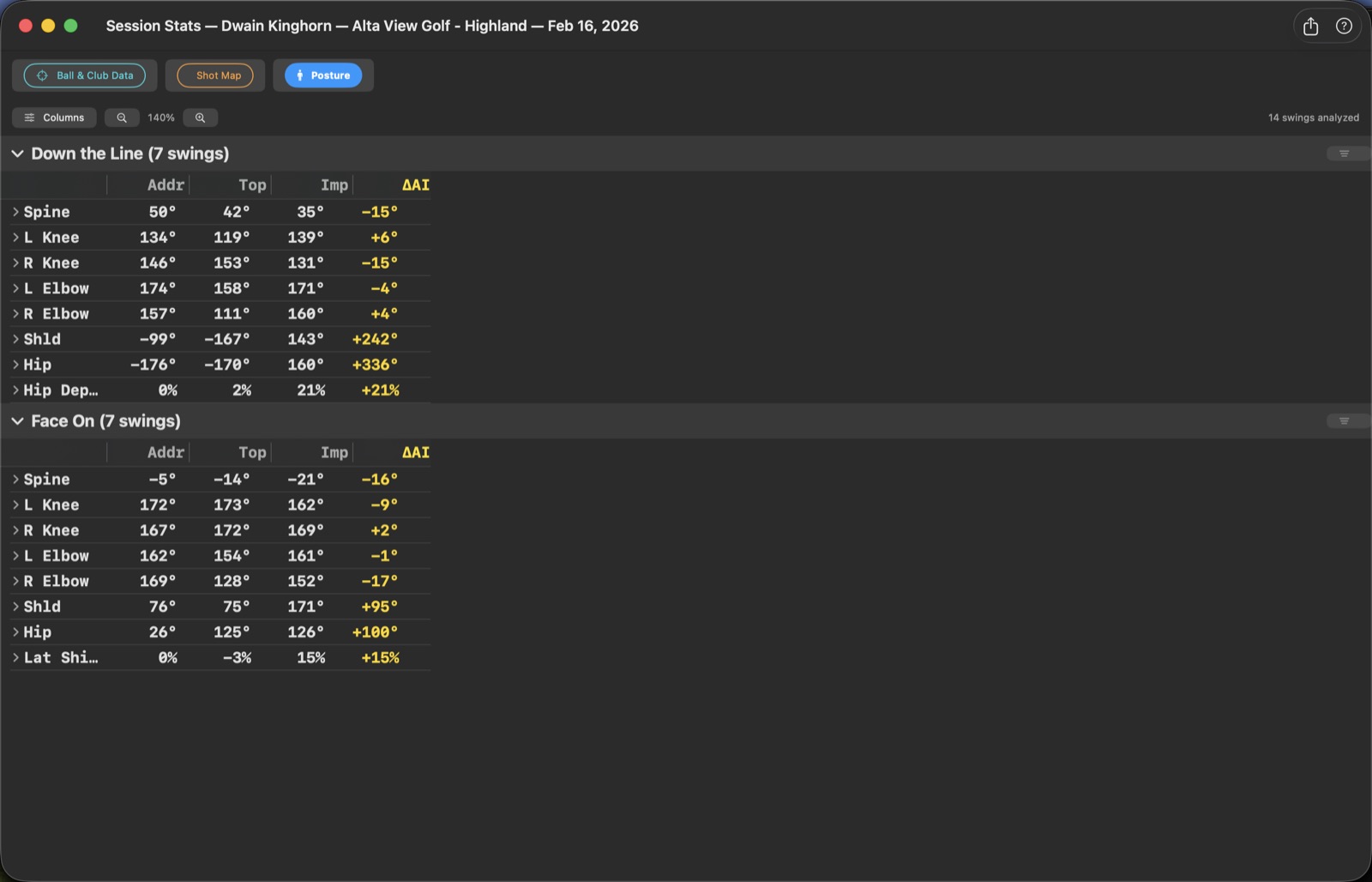
Session Stats gives you a bird's-eye view of your posture and hand path numbers across every swing in the session — so you can spot patterns and consistency issues at a glance.
From inside a session, tap "Session Stats" to open the pivot table. You'll see two tabs:
- Posture — spine angle, hip depth, and lateral shift measured at address, top, and impact for every swing. The Delta AI column shows how much each metric changed from address to impact — so you can see if you're losing posture consistently or just on certain swings.
- Hand Path — over-the-top percentage and path direction for each swing, so you can track whether your swing path is improving.
Swings are grouped by camera angle (Down the Line and Face On), with per-swing breakdowns plus Min/Max summaries. Tap the Columns button to choose which swing positions to display, and use the zoom controls to adjust the table size.
This is one of the fastest ways to answer "am I getting more consistent?" — instead of reviewing each swing individually, you see all the numbers side by side in one table.

Posture Grading
The colored grades you see on swing cards and in Session Stats are fully customizable. Go to Settings → Posture Grading to set your own thresholds for what counts as green (good), yellow (caution), or red (needs work).
You can configure thresholds for each metric:
Down the Line:
- Spine Tilt Change — how much your spine angle changes from address to impact (default: green within ±3°, yellow within ±6°)
- Hip Depth Change — how much your hips move toward or away from the ball (default: green under 5%, yellow under 10%)
- Hand Path — over-the-top percentage (default: green within ±5%, yellow within ±15%)
Face On:
- Lateral Shift — how much you sway laterally at impact as a percentage of stance width (default: green under 15%, yellow under 20%)
Each metric can be toggled on or off, and thresholds are adjustable with + and − buttons. Set tighter thresholds as your swing improves — the grading grows with you.

How do I set up my golfer profile?
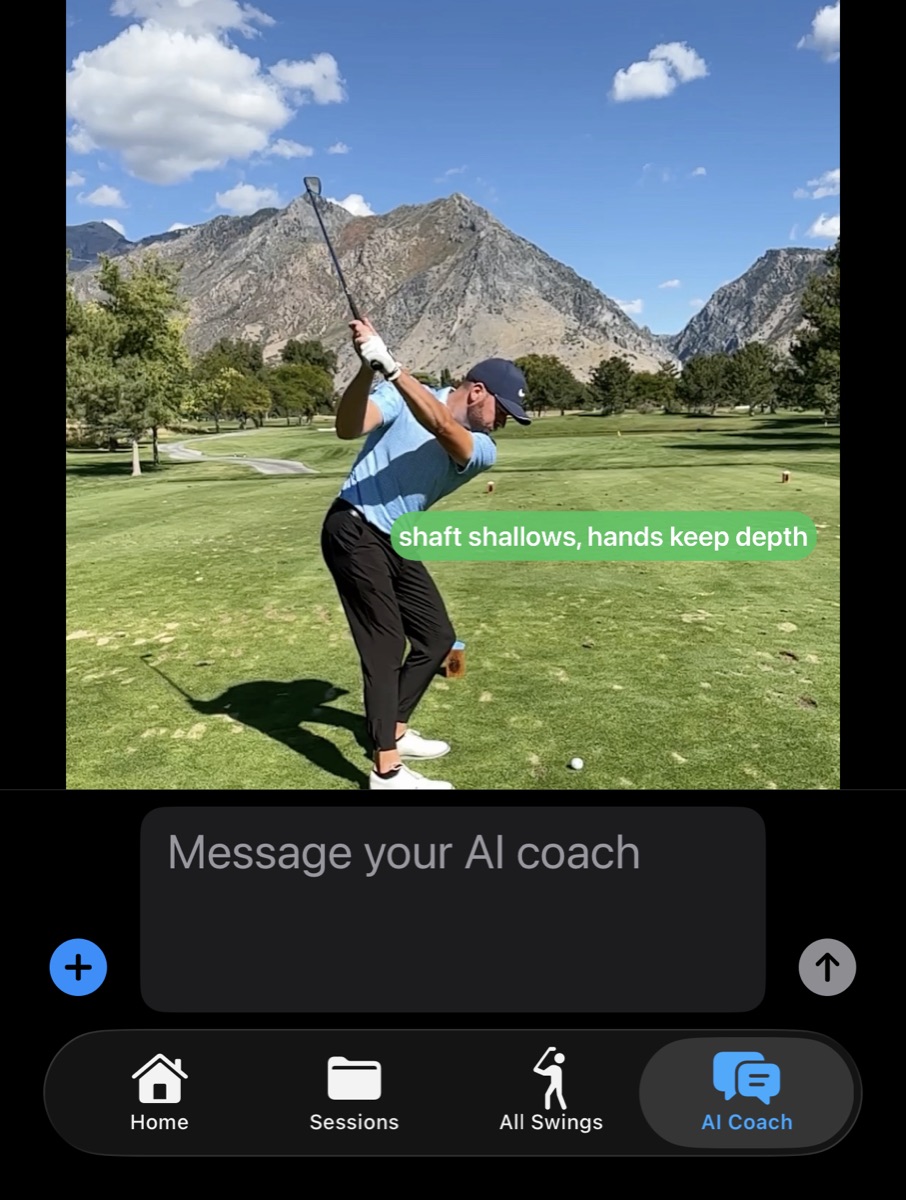
Before using AI coaching, set up your golfer profile so the AI understands who you are. Tap the AI Coach tab — you'll see your profile summary at the top (handicap, gender, handedness, age range, skill level).
Tap it to edit your details:
- Handicap — your current GHIN or estimated handicap
- Gender and Handedness — helps the AI reference the correct body mechanics
- Age range — factors into flexibility and swing speed expectations
- Skill level — adjusts how technical the AI's feedback is
This context makes AI coaching dramatically better. Instead of generic advice, the AI knows it's talking to a 5-handicap right-handed intermediate player — and adjusts accordingly.

How do I set up the AI Coach?
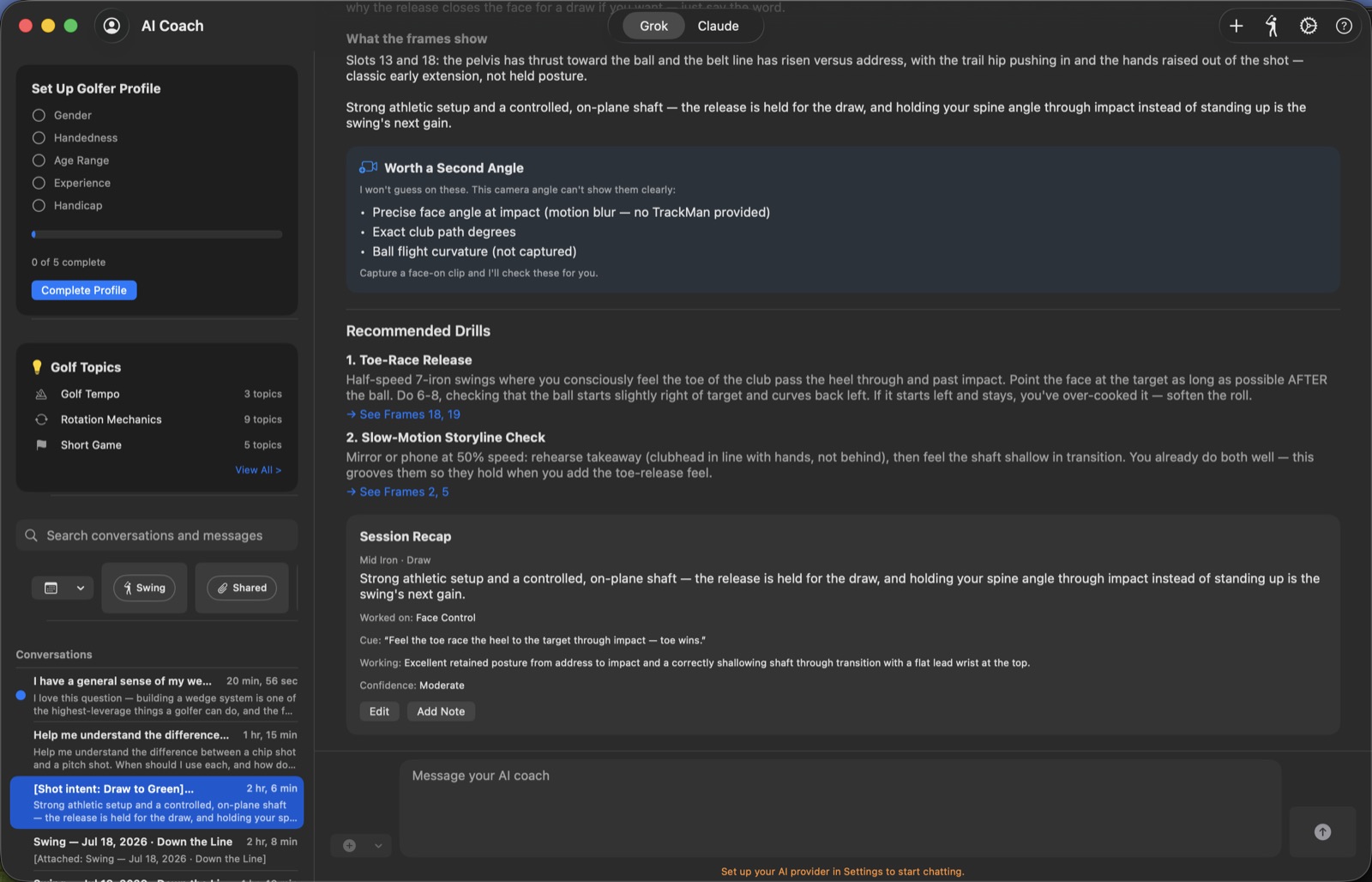
MotionEdge supports two AI coaching providers — Grok (from xAI) and Claude (from Anthropic). During the beta, you'll need to provide your own API key to use AI coaching.
To configure:
- Tap the AI Coach tab
- Tap the gear icon in the top-right corner to open AI Settings
- Choose your Active Provider — Grok or Claude
- Enter your API key for that provider:
- Grok: Get your key from x.ai
- Claude: Get your key from console.anthropic.com
- Tap Test Connection to verify it works
Don't have an API key? During the beta period, reach out to the MotionEdge team at support@motionedge.ai to coordinate getting a beta key.

How do I get AI coaching feedback?
Once your profile and API key are set up, the AI Coach is ready to analyze your swings.
- Tap the AI Coach tab
- Tap + to start a new conversation
- Attach a swing — you can share your video, filmstrip, or specific frames
- Ask a question: "What's causing my slice?" or "How does my hip rotation look at impact?"
The AI sees your pose landmarks, joint angles, and metrics — so its feedback is grounded in what's actually happening in your swing, not guesswork.
You can also browse Golf Topics (shown on the AI Coach tab) for guided coaching prompts on Tempo, Rotation Mechanics, Short Game, and more. These give the AI specific instructions for the kind of analysis you want.

Does MotionEdge run on iPad and Mac?
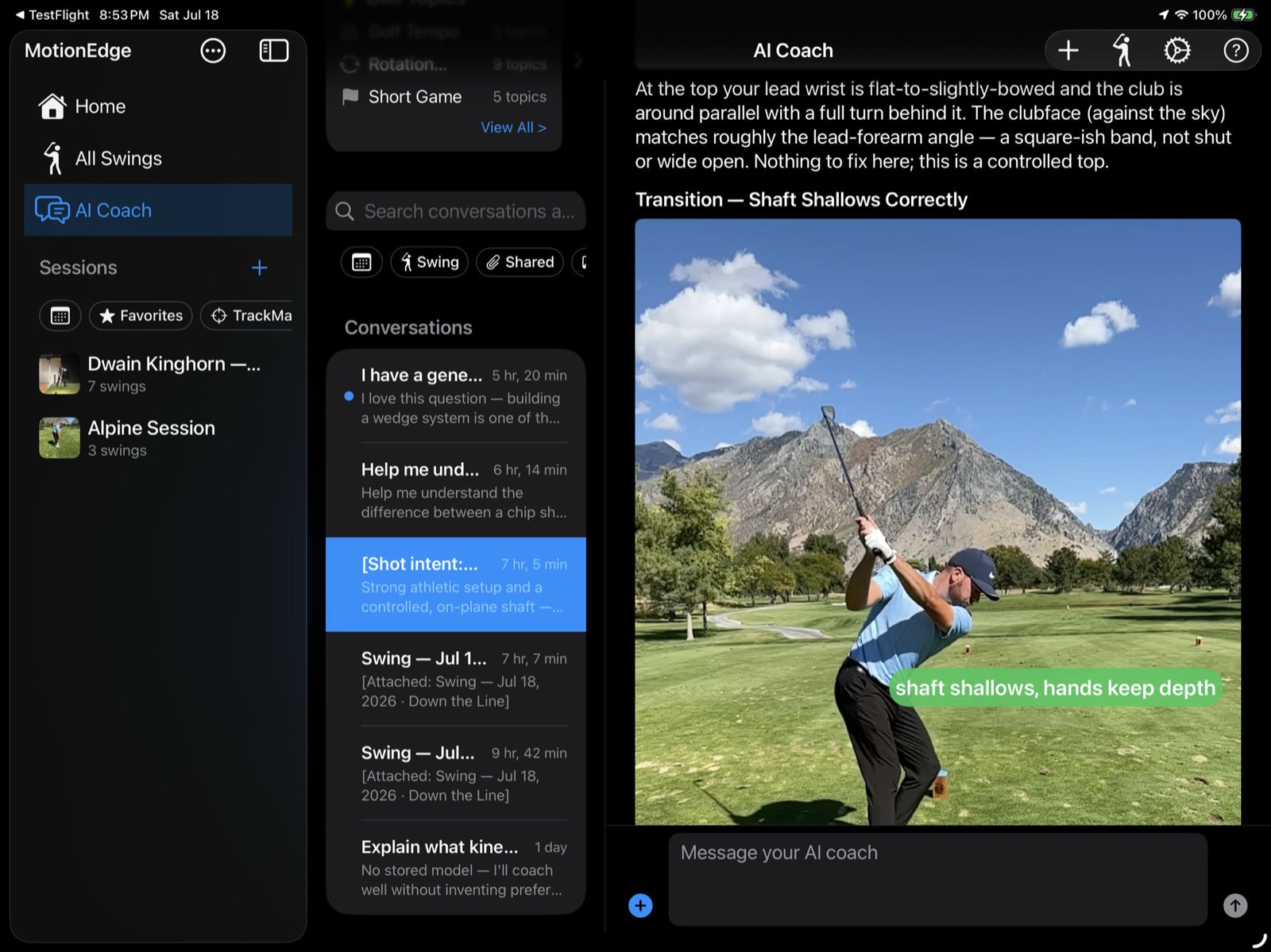
Yes — MotionEdge runs on iPhone, iPad, and Mac. Same app, same data, all three platforms. You just need iOS 26, iPadOS 26, or macOS 26 or later.
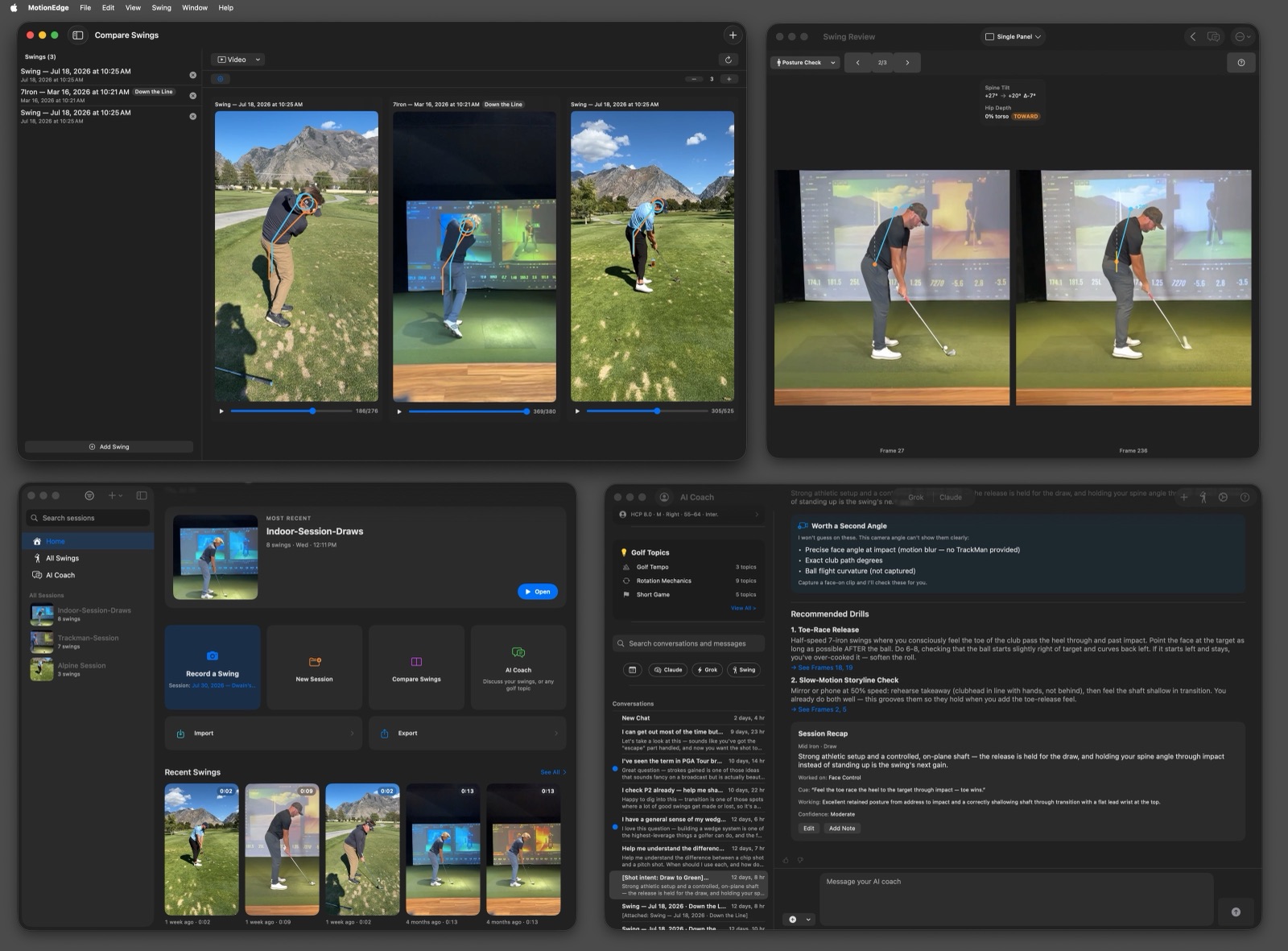
iPad gives you a larger screen for reviewing swings. The split-view layout shows your session list on the left and the swing viewer or comparison on the right — no navigating back and forth. Great for lesson review with a coach or side-by-side comparison on a bigger canvas.

Mac takes it further — you can open multiple windows at the same time. Have your session list in one window, a swing review in another, and the AI Coach in a third. It's the best setup for deep analysis when you're back from the range and want to really dig into your session.

How do I sync between my devices?
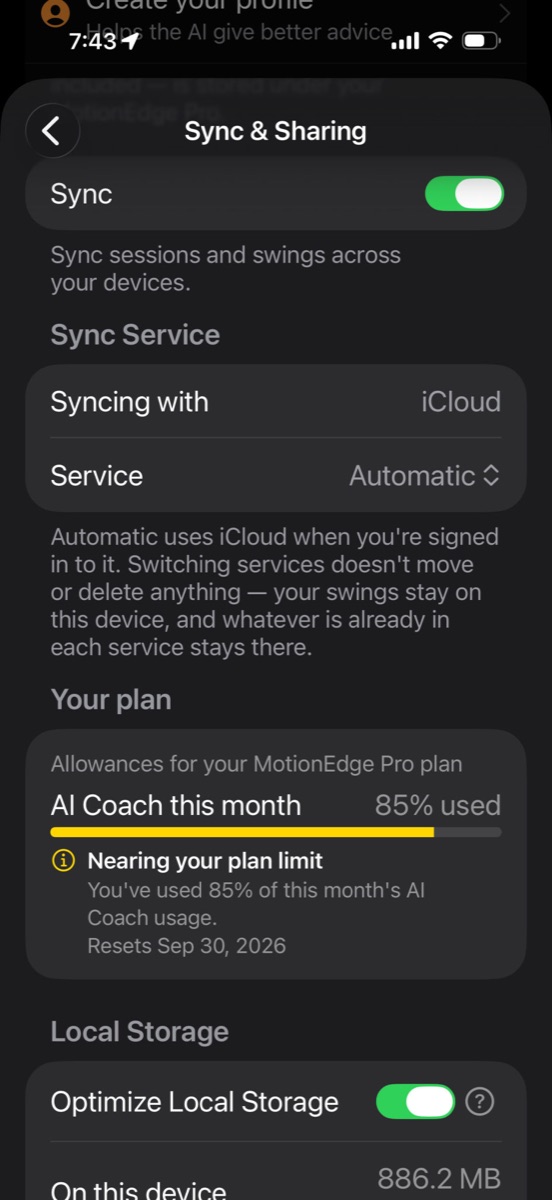
MotionEdge uses iCloud to keep everything in sync across your iPhone, iPad, and Mac — as long as they're signed into the same iCloud account.
To enable sync:
- Open Settings (⋯ menu → Settings)
- Find iCloud Sync and tap to turn it On

Once enabled, your sessions, swings, video files, AI conversations, and comments sync automatically. Record on your iPhone at the range, then pick up your iPad or Mac at home and everything is already there.
Sync happens in the background — you'll see a "Synced in X seconds" indicator at the bottom of the screen when it completes. Video files download on demand, so syncing is fast even with large sessions.
Note: iCloud sync is a Pro feature. Without Pro, you can still transfer sessions between devices manually using .mef file export and import.
How do I share sessions with other people?
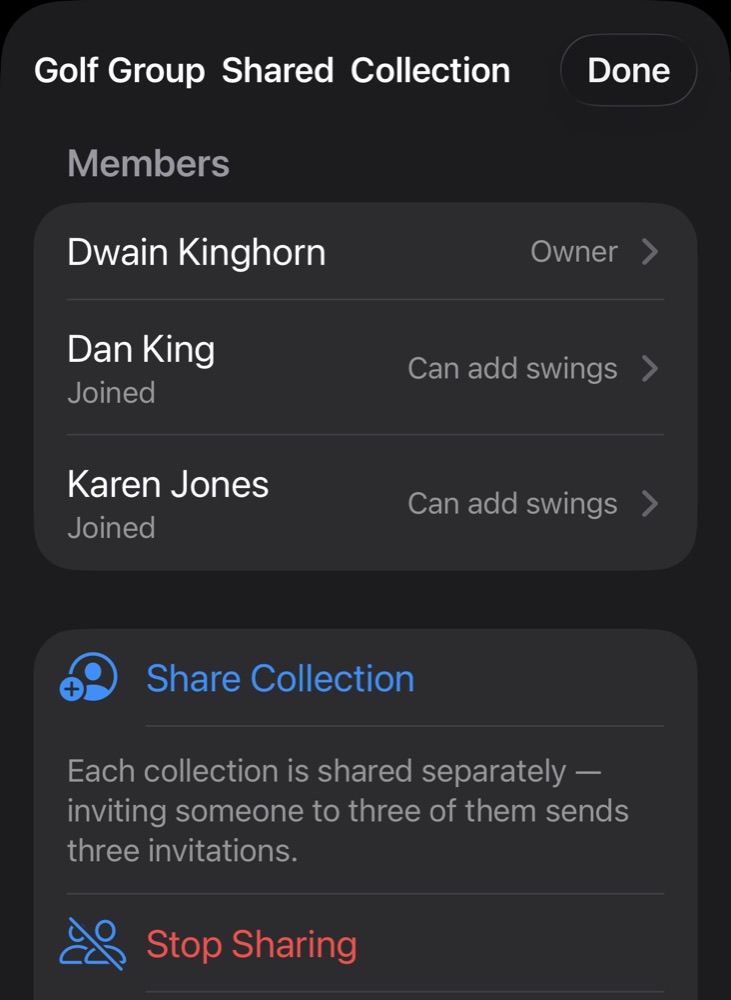
MotionEdge uses the MotionEdge File (.mef) format to package an entire session — all swings, videos, pose data, annotations, and TrackMan data — into a single file you can share with anyone.
To export:
- Open the session you want to share
- Tap the ⋯ menu → Export Session (.mef)
- Share via AirDrop, Messages, email, or save to Files
To import:
- Tap the ⋯ menu → Import → MotionEdge Session (.mef)
- Select the
.meffile — the complete session appears with all data intact
This is great for:
- Sending sessions to your coach — they get your full swing videos with pose data, not just a video clip
- Sharing with friends — compare swings from different golfers in the same app
- Transferring between devices — record on your iPhone, export, then import on your iPad or Mac (or use iCloud sync instead)
- Archiving — back up important sessions to iCloud Drive or any cloud storage

How do I get the beta?
MotionEdge is currently in beta, available through Apple's TestFlight app. TestFlight lets you install pre-release apps and receive automatic updates as new builds are published.
To install TestFlight:
- iPhone / iPad — TestFlight is a free download from the App Store (search "TestFlight")
- Mac — TestFlight is a free download from the Mac App Store (search "TestFlight"). This step is easy to miss — unlike iOS, TestFlight is not pre-installed on Mac
Once you have TestFlight installed, you'll receive an invite link. Open it on any of your devices and tap Install. Your iCloud account ties everything together — one invitation covers iPhone, iPad, and Mac. Install on all three and your sessions sync across all of them via iCloud.
TestFlight builds expire after 90 days, but new builds are pushed regularly with the latest features and fixes. TestFlight notifies you automatically when an update is available.
Want access to the beta? Email us at support@motionedge.ai and we'll send you an invite.
Quick tips for new users
- Use a tripod for the best auto-detection and pose tracking accuracy
- Import pro swings from YouTube as reference videos — compare your positions to theirs
- Check your tempo ratio (shown automatically) — the tour average is 3:1 backswing to downswing
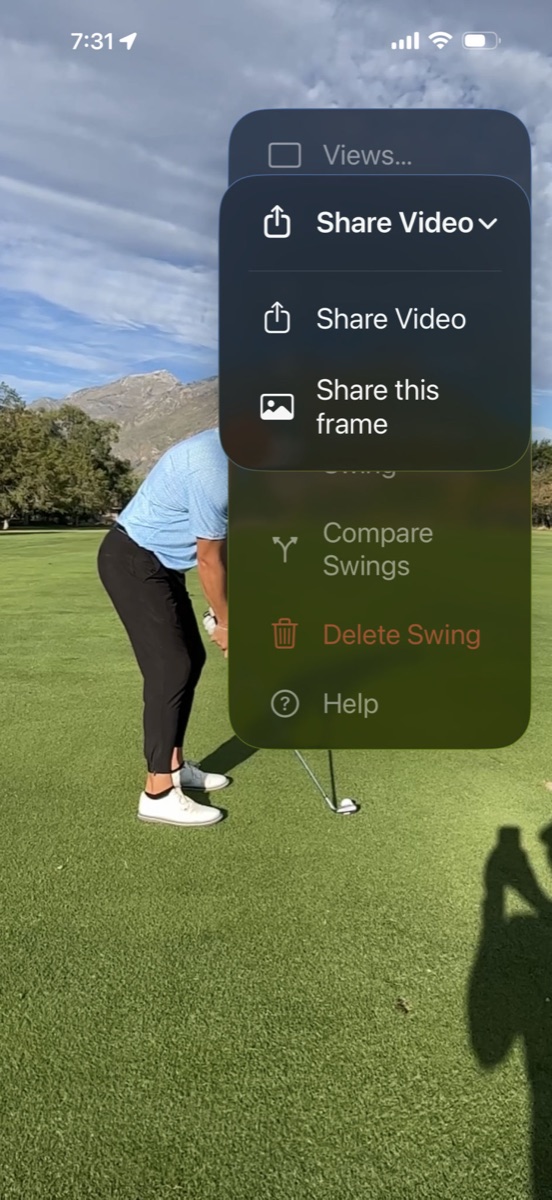
- Share your filmstrip — tap export to send it as an image to your coach, lesson group, or buddies
- Try different panel layouts — single panel for focused review, quad layout for seeing everything at once
- Name your sessions with what you were working on ("Driver path fix", "Wedge distance control") — future you will thank you