Your Swing Studio
Studio-grade capture and analysis on the devices you already own.
Grading that runs on your phone, a coach that remembers what you talked about last time, manual camera control, and capture that starts itself. Eight things MotionEdge does — jump to any of them.
Native apps for iPhone, iPad and Mac — capture, grading, review and coaching run on all three, not a phone app stretched to fit.
Analysis
Instant on-device swing grading.
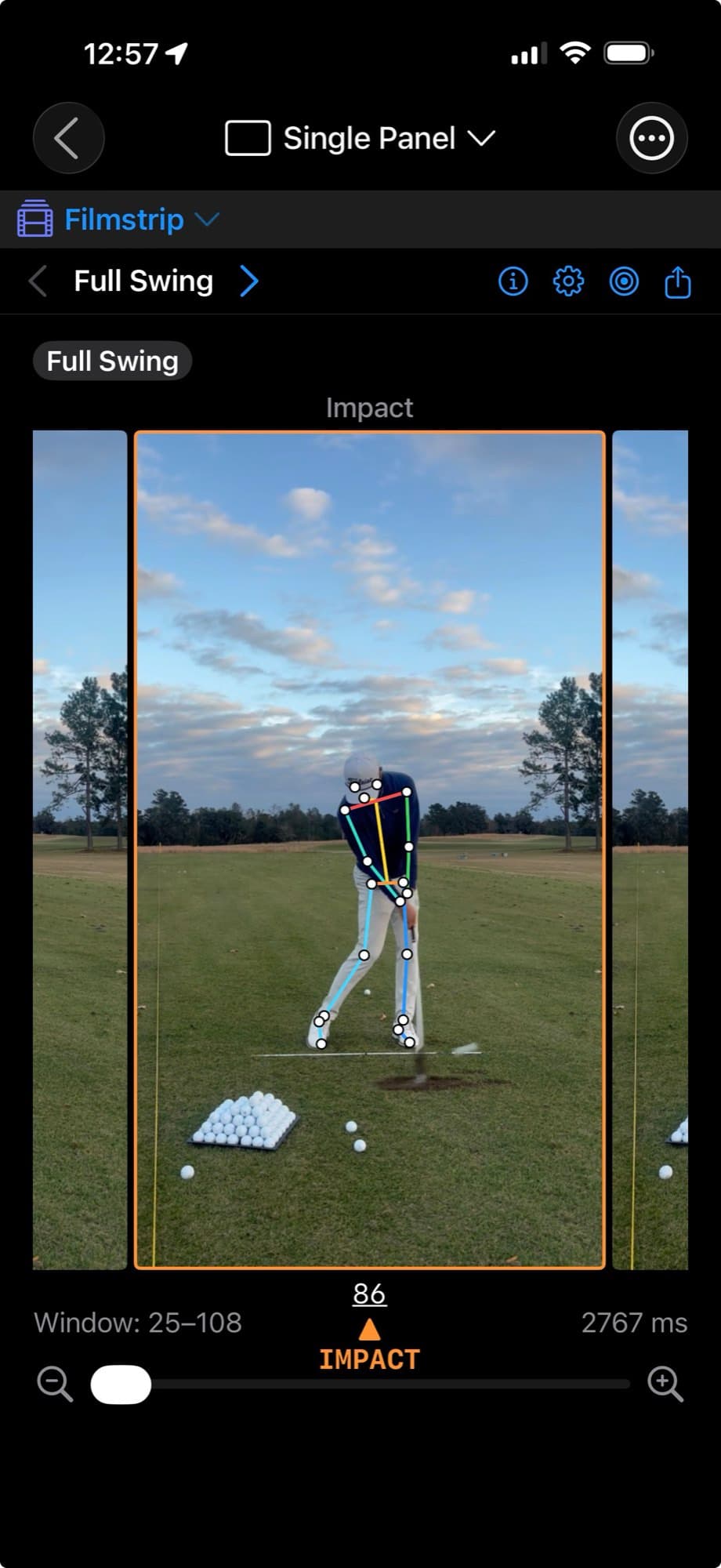
Every joint, every frame
Posture grading, hand-path grading, Shaft Check, the 10-position filmstrip, multi-swing comparison and joint overlays all run on your phone, and all of it is free. No upload, no queue, no spinner — and no signal required, which matters at a range with one bar.
Setup against impact, measured
Posture Check does not just show you two frames — it puts address and impact side by side and states the difference. Spine tilt +50° at setup, +57° at impact, a +7° delta. Hip depth 5% of torso away from the ball. Numbers, not impressions.
Hand-path grading compares each downswing frame against the matching point on your backswing curve, so "over the top" and "in the slot" stop being opinions and become a measurement you can watch move session to session.
Study one panel at a time, or open the quad grid and put the video, the filmstrip, Posture Check and Hand Path on screen together — the swing, its 10 positions, the posture numbers and the hand path all in one glance.
The club, not just the body
Shaft Check finds the club on your own frames and draws the plane you set up on. Then it tells you where the shaft sits against it: on the address plane at takeaway, or above the corridor coming down. Face-on or down-the-line.
Turn on the elbow and shoulder planes when you want the full picture. It is free, like the rest of the grading.
Review
Take the swing apart, frame by frame.
Powerful tools for deep swing insights
Swing Review is built from panels, and each one reads the swing a different way. Watch the video, swap to the filmstrip, check the posture grade, pull up AI Coach feedback on that swing, or read the TrackMan and Watch numbers alongside it.
The same screen is where you name a swing, set the club and the course, and leave a comment — the details that make it findable months later.
Combine panels in one window and watch two camera angles of the same swing at once.
Save your own annotations Hand path, traced and graded Ghost overlay — the same swing against itself Every overlay, at setup or live TrackMan numbers beside the swing that made them Two camera angles at once
Compare
Up to ten swings, one screen.
Put any swings together
Open Compare Swings and pick what you want beside each other: today against last month, driver against 7-iron, or your swing against a tour pro you have imported. Up to 10 swings can sit on screen at once, each with its own scrubber.
AI Coach
A coach that knows your swing, and the rest of your game.
What your AI coach does
Knows your scores
Reads your GHIN rounds and trends, so coaching fits how you actually score.
Coaches in your voice
Pick the tone: deep technical detail or simple do-this cues.
Learns what clicks
Thumbs-up or down on any reply, and it adapts to how you learn.
A curated topic library
Dig into a growing library of golf topics: tempo, rotation, short game and more.
There when you practice
Send new swings and pick the conversation back up whenever you practice.
Grounded in real biomechanics
Coaching built on proven fundamentals and tour-level patterns — not chat fluff about your swing video.
Coach's Corner
Golf Topics in the app is a question library. Coach's Corner is one swing idea at a time — a cue, a drill, and official clips — free to read on the web. The coach in the app picks the card for the swing you just filmed.
Ask about any part of the game
It is not limited to the swing on screen, and you do not have to think up the question. A built-in topic library covers Golf Tempo, Rotation Mechanics, Short Game, Putting, Swing Positions, Fault Diagnosis, Strokes Gained, Playing the Weather, the Mental Game and the Kinematic Swing Sequence — each opening into specific questions rather than sitting there as a vague heading.
Under Mental Game: a pre-shot routine, playing under pressure, first-tee jitters. Under Playing the Weather: what wind, rain and temperature do to the ball and to your strategy.
And every answer comes back to you. The coach already knows your swing, so a question about sequencing is answered against your sequencing rather than in the abstract — the topic is the way in, your swing is the subject.
Capture
Smart enough to catch every swing. Open enough to tune every setting.
Five ways to catch a swing
Auto-detect every swing with your camera — simply walk into the frame and let the camera automatically create and trim videos of your swings. Or start it whichever way suits the session:
Manual
Buttons on the phone, or a button on your watch.
Voice
Start and stop with both hands on the club.
Camera
Walk in, swing, and it creates and trims the clip.
Apple Watch
Auto-capture from the wrist, phone on the tripod.
TrackMan
A direct connection fires the capture off ball flight.
Complete control over camera settings
Fast-Shutter Mode caps the shutter at 1/250s and biases ISO up to keep the frame bright and limit motion blur. It will auto-step shutter speed down to 1/125 or 1/60 when there just isn't enough light — such as an indoor hitting bay. Shutter speed and ISO controls are yours when you want them, in scenarios like an indoor simulator where a fast shutter may catch LED flicker.
You have complete control to choose your lens — back main for the best optics, ultra-wide for a tight bay, front for self-coaching — plus your video resolution and frame rate, up to 240 fps. A higher frame rate gives you more to slow down; a lower one keeps a season of practice off your storage.
Any device can be a camera, or the screen
Either role can be any device. Point the Mac at your swing and run the session from an iPhone instead.
Every iPhone, iPad and Mac can be a remote camera. You can set up multiple remote cameras and then view the swing from a larger screen like an iPad that you place next to where you are hitting.
You get a real-time feed from the remote cameras so you can see your body and club positions in real time in your pre-shot routine.
Then once you swing all the video feeds are immediately available to simultaneously see all the angles that you recorded. These videos can be reviewed in more detail later, and all video angles are stored with your swing.
What it looks like at the range
One phone on a tripod filming, one iPad in front of you as the Director. You rehearse against the live feed, swing, and the capture is already graded by the time you look down.
Your library
A practice journal, not a pile of clips.
Tag it while you remember why it mattered
Recording a swing is easy. Remembering, three weeks later, which one was the swing where you finally shallowed the club — that is the hard part.
So every swing carries what you give it: a name, the club you hit, tags, a star, comments, and the person who hit it — useful when you are filming a friend or a student, not just yourself. Date and time come free, and so does the course, captured from where you were standing or set by hand.
The app adds its own: which swings are multi-angle, which are screen recordings, and the grade it gave your hand path or posture.
Then actually find it again
Search the whole library by any of it — a tag, a club, a person, a course, a name you gave a swing months ago. Filter down to favorites, multi-angle captures or screen recordings, or narrow by date.
Swings live in sessions, and you can move them between sessions when one range trip turns out to have been two. Nothing is buried in a camera roll with three hundred other clips.
TrackMan
Launch numbers beside the swing that produced them.
Bring in a TrackMan studio session
Import a stroke file, paste a report link, or connect live to a TrackMan on your network — including setting the center aim point, so club path, face angle and launch direction are measured against the target line you actually aimed at.
A studio session arrives intact: every swing, every camera angle you filmed it from, and the numbers for each one.
Apple Watch
Run the session from your wrist.
The whole session, without touching the phone
Start a session, switch the camera between rear and front, set the frame rate, pick the training profile you are working on, and go — all from the watch face, with the phone forty feet away on a tripod.
Then swing. The Watch triggers the capture itself, with sensitivity tuning that tells a real swing from a waggle, so the phone records without anyone pressing anything.
Start, camera, training — from the watch face. Switch lens and frame rate on the phone, from your wrist. Your training profile comes with you.
And it measures things a camera cannot
Tempo comes off the wrist directly, along with peak hand speed — motion the camera has to infer, measured instead. Haptic rhythm training runs with the phone still in the bag, so you can groove a tempo without filming anything at all.
Each swing also carries its own environment: altitude, pressure and sensor context, recorded at the moment you hit it.
Everywhere
Capture on one device, pick up on another.
One library, every screen you own
Native iPhone, iPad and Mac apps — not a phone app stretched to fit. Record at the range, walk inside, open your iPad or Mac, and the session is already there and already analyzed.
Your swings sync across your devices via iCloud, as part of MotionEdge Pro. Without it, everything still works on the device you recorded on.
And you can see exactly what it is using
Storage is not a mystery number. Settings shows what is on this device and how many videos that is, and how much has been offloaded — all of it stated plainly rather than buried.
Turn on Optimize Local Storage and older videos stay in your synced library until you want one, then download automatically when you play it. Reclaim Storage Now frees space on demand, and because your library is synced, reclaiming space does not put a swing at risk.
Sync status is just as visible: it tells you it synced, and how long it took.
Want the workflow rather than the feature list? See how it works, step by step →
Or check what's free and what Pro unlocks →