
Setting Up Remote Camera — Pairing Your Devices
MotionEdge Pro required. Manage Cameras and Go Remote are Pro features.
Remote Camera is MotionEdge's multi-device capture system. You put one or more iPhones on tripods pointed at you, and you do all the actual review and analysis on a different device — an iPad in your bag, a Mac at the practice bay. The camera doesn't need to be the same device you're scrubbing through video on.
This article covers the setup and pairing flow. You do not need both devices on the same Wi-Fi — see Remote Camera Without the Same Wi-Fi. For the conceptual split between the two roles (what shows up where, why), see Remote vs Director — What Each Device Shows. For hotspot problems, see Remote Camera Troubleshooting.
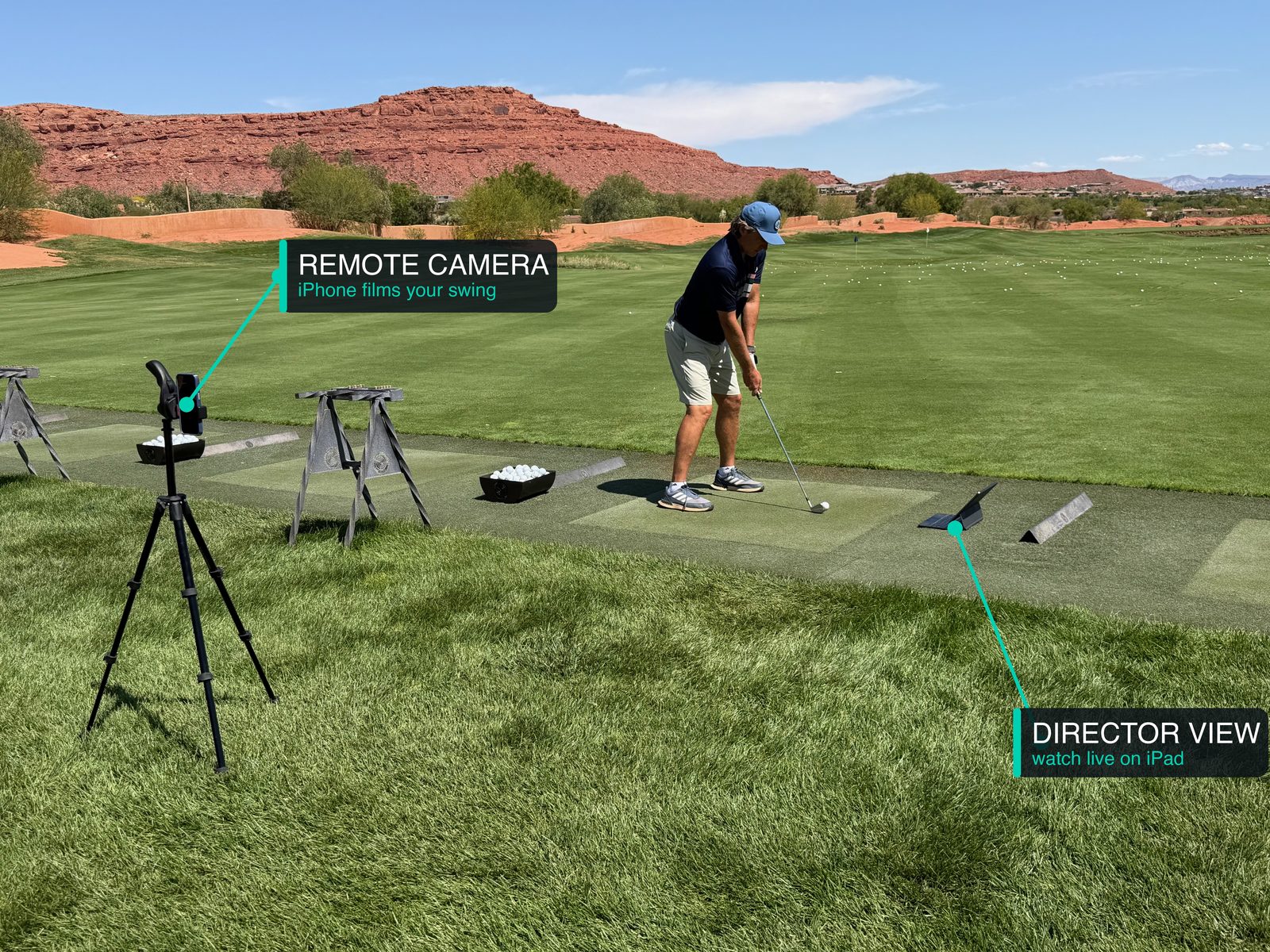
The two roles
| Role | What it does | Best device |
|---|---|---|
| Remote | Captures video and detects swings, sends them to the Director | iPhone on a tripod — smaller and easier to position |
| Director | Receives video and swings, runs the full app — sessions, sidebar, Video Review, AI Coach | iPad or Mac — bigger screen, the device you're actually reviewing on |
A single Remote + a single Director is the common setup. You can also pair two or more Remotes to one Director — typically a face-on iPhone + a down-the-line iPhone, both feeding the same Director iPad.
Choosing which device is the Director
Director > Remote in terms of where you spend your time, so the Director should be your biggest, most-comfortable-to-use screen:
- iPad (recommended) — best balance. Big enough to review on, portable enough to take to the range, supports the same review tools as Mac.
- Mac — best if you're capturing in a studio or indoor bay with the Mac already set up.
- iPhone as Director — works but cramped. Only choose this if you only have iPhones available.
The Remote(s) can be older iPhones, even ones that aren't your primary phone. As long as the camera works and Wi-Fi is switched on (joined to a network or not), they'll do the job.
The setup flow
Both roles start from the same menu — tap the camera icon at the top of the camera screen to open it:
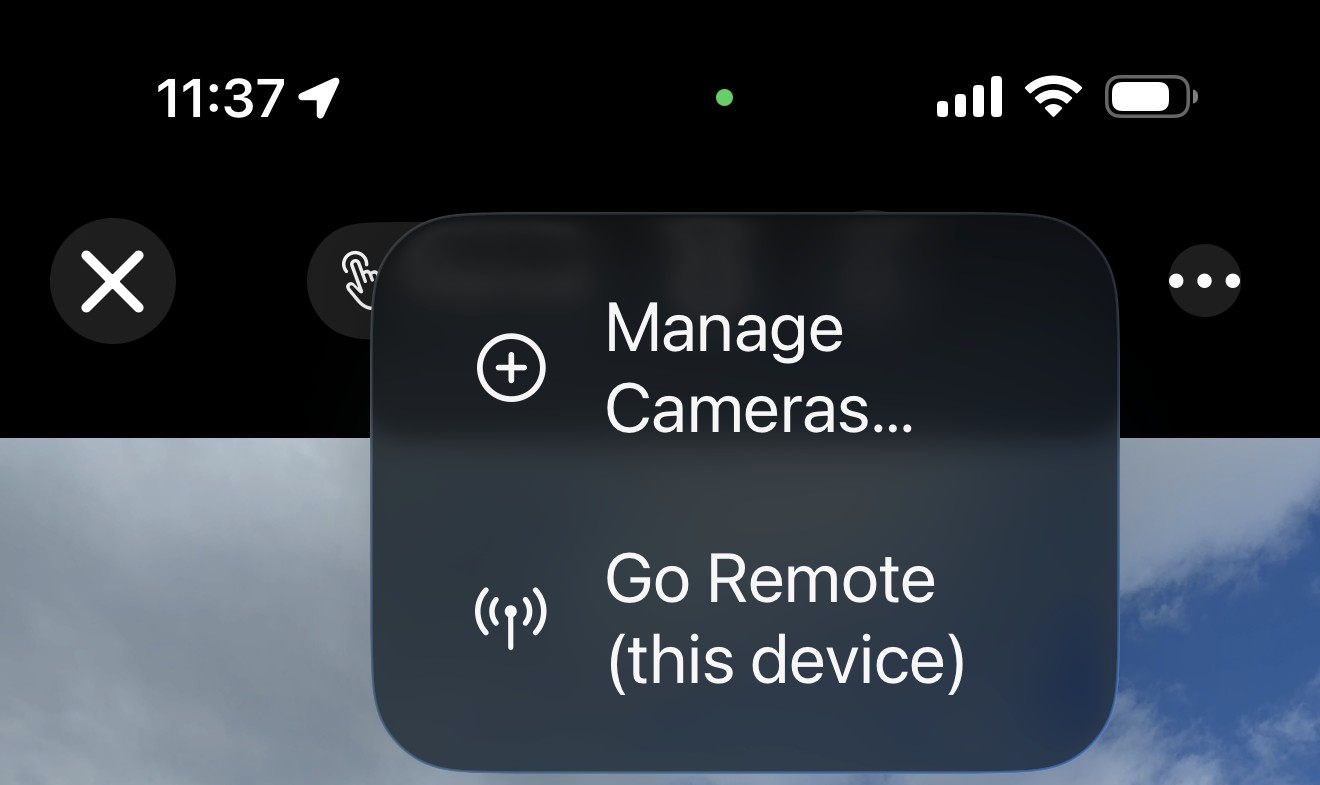
- Go Remote (this device) puts the phone into Remote mode (Step 2).
- Manage Cameras… opens the Director's camera list (Step 3).
Step 1 — Let the devices see each other
They do not have to join the same Wi-Fi. Leave Wi-Fi on and Bluetooth on on both devices. Staying on “Not Connected” is fine. That is the range default — Apple’s device-to-device Wi-Fi (the same radio AirDrop uses). Details and the combinations that work: Remote Camera Without the Same Wi-Fi.
If you are already on a network, these still work:
- Home / studio Wi-Fi — both joined to the same network.
- TrackMan facility Wi-Fi — both joined; you also get live radar.
- iPhone hotspot — the older range recipe, with Private Wi-Fi Address turned off. Full notes: Remote Camera Troubleshooting.
Step 2 — Put the Remote into "Go Remote" mode
On the iPhone you want to use as the Remote, open MotionEdge and switch to Go Remote mode from the camera screen. The iPhone now broadcasts its presence and waits for a Director to pair — on the same Wi-Fi if you joined one, or device-to-device if you did not.
Step 3 — On the Director, discover and pair
On the Director (iPad or Mac), open the Remote Cameras sheet. Nearby Remotes show up in a list — tap the one you want to pair. Once paired, the Director can see the Remote's live preview and receive swings from it.
If a Remote doesn't appear automatically, bring the devices closer for the first pair (the no-network path behaves like AirDrop). Enter IP Address is the fallback when you are on a shared hotspot or LAN and discovery failed — not the no-network path.
Step 4 — (Optional) Add a second Remote
Repeat Steps 2–3 with a second iPhone. The Director will discover it the same way and let you pair it. Now both Remotes feed swings to one Director.
The most common multi-camera setup: one iPhone at the face-on position (perpendicular to the target line, looking at the golfer's chest), one iPhone at the down-the-line position (looking along the target line from behind the golfer). The Director receives swings from both with their camera-angle metadata attached, so when you review a swing you can see both angles together.
Once paired — what happens next
The Remote runs swing detection (Auto-Detect by default) and saves clips automatically as you hit balls. The Director receives those clips in near-real-time and shows them in your current session.
You don't need to touch the Remote during the session — that's the whole point. Set it up, walk back to your hitting position, swing. The clips appear on the Director.
If you want to manually trigger a capture instead of using Auto-Detect, you can do that from the Director (or from a paired Apple Watch). The Remote captures whatever it's told to capture.
Quick reference checklist
- Wi-Fi switch on and Bluetooth on on both devices (they do not have to join a network)
- If you are using a hotspot: Private Wi-Fi Address off (per Troubleshooting article)
- Remote iPhone running MotionEdge in Go Remote mode
- Director iPad/Mac with Remote Cameras sheet open, Remote showing in the list
- Tap Remote → paired → live preview visible on Director
- (Optional) Repeat for a second Remote
If discovery fails at the "Remote shows in the list" step, the troubleshooting article walks through every failure mode — that's the right place to go before assuming something is broken.
See also: Remote Camera Without the Same Wi-Fi when you are not on a shared network. The Camera Screen for controls on the Remote. Remote vs Director — What Each Device Shows for the role split. Remote Camera Troubleshooting for hotspot problems.